On this page
Dashboard — your home screen
The Dashboard is what you see when you sign in (unless you've chosen a different start page). It gives you an at-a-glance summary of your racing on Apex — totals, your track records, the tracks you've visited recently, and your latest sessions — with quick links into the detail.
This chapter uses our demo driver, Jordan Miles.
What this is for
- See your headline totals at a glance.
- Jump quickly to your events, sessions and tracks.
- Check your track records and review your recent sessions.
How to get here
The Dashboard is the default home screen — select Dashboard in the sidebar at any time. The page header reads Dashboard / Your Racing Performance. (You can change which page opens at sign-in in Preferences.)
The summary cards
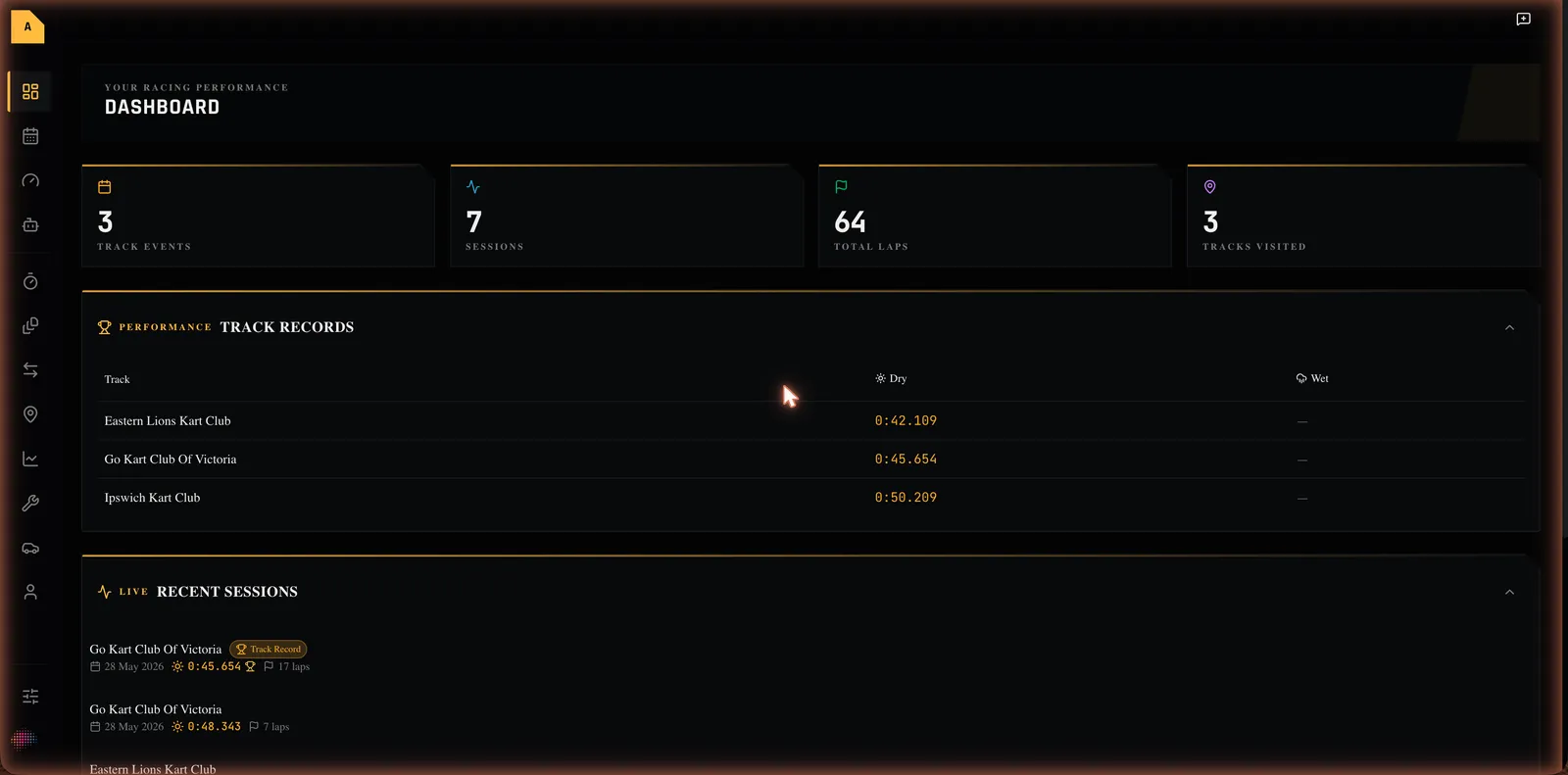
Four cards across the top show your totals; each links to the matching area:
| Card | What it shows | Opens |
|---|---|---|
| Track Events | How many events you've recorded | Events |
| Sessions | How many sessions you've recorded | Sessions |
| Total Laps | Total laps across all sessions | Sessions |
| Tracks Visited | How many different tracks you've run | Tracks |
The sections
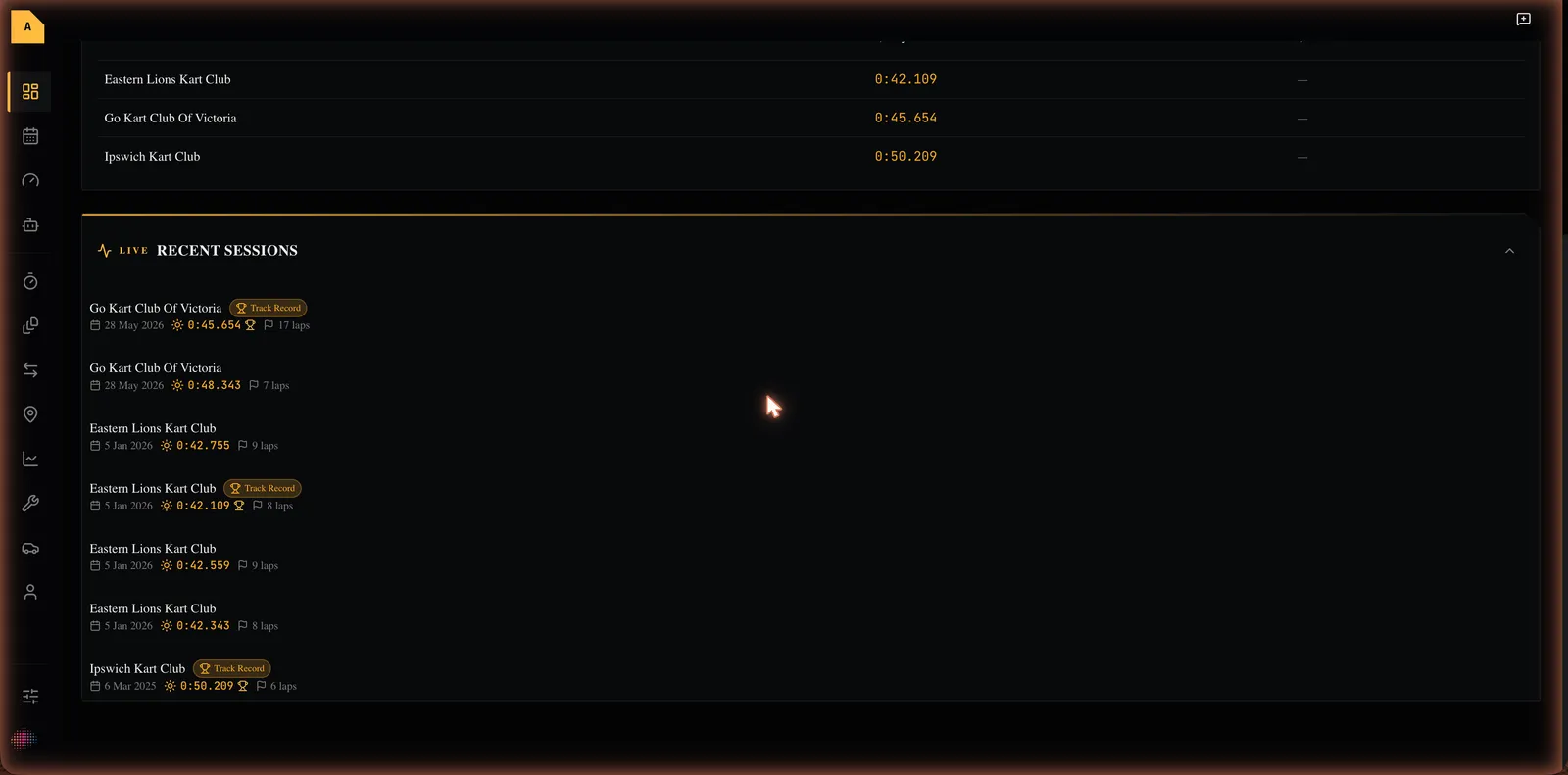
- Track Records — a table of your best dry and wet times per track; each time links to the session that set it. Empty state: "No track records yet. Complete a session to set your first record."
- Tracks Visited (This Month) — the tracks you've been to recently, each linking through to its events.
- Recent Sessions — your latest sessions with date, weather, best lap and lap count; a Track Record badge marks any that set a record. Empty state: "No sessions yet" / "Record your first session to see it here."
Empty and loading states
- Brand-new account: the totals read zero and each section shows its own empty message prompting you to record your first session.
- Loading: placeholder cards and rows appear while your data loads.
Where to next
- Read your dashboard
- Unfamiliar word? See the Glossary. Stuck? See Troubleshooting & FAQ.