Signing in & getting around
This chapter covers how you sign in to Apex and how you move around once you're in — the sidebar on a computer, the bottom bar and menu on a phone, and the user menu where your account, preferences and billing live.
This chapter uses our demo driver, Jordan Miles.
Signing in and signing up
Apex sign-in and sign-up screens are branded with the APEX logo and the tagline "Karting Telemetry & Coaching". You can sign in or create an account using the options offered on the screen (such as email and the available social logins). Once you're signed in, Apex sets up your driver profile automatically and takes you to your start page.
Development mode is expected on the test site. On the pre-production site you may see a "Development mode" badge and shorter sessions that occasionally sign you out. This is intentional for the test environment and is not a fault — just sign in again.
The sidebar (on a computer)
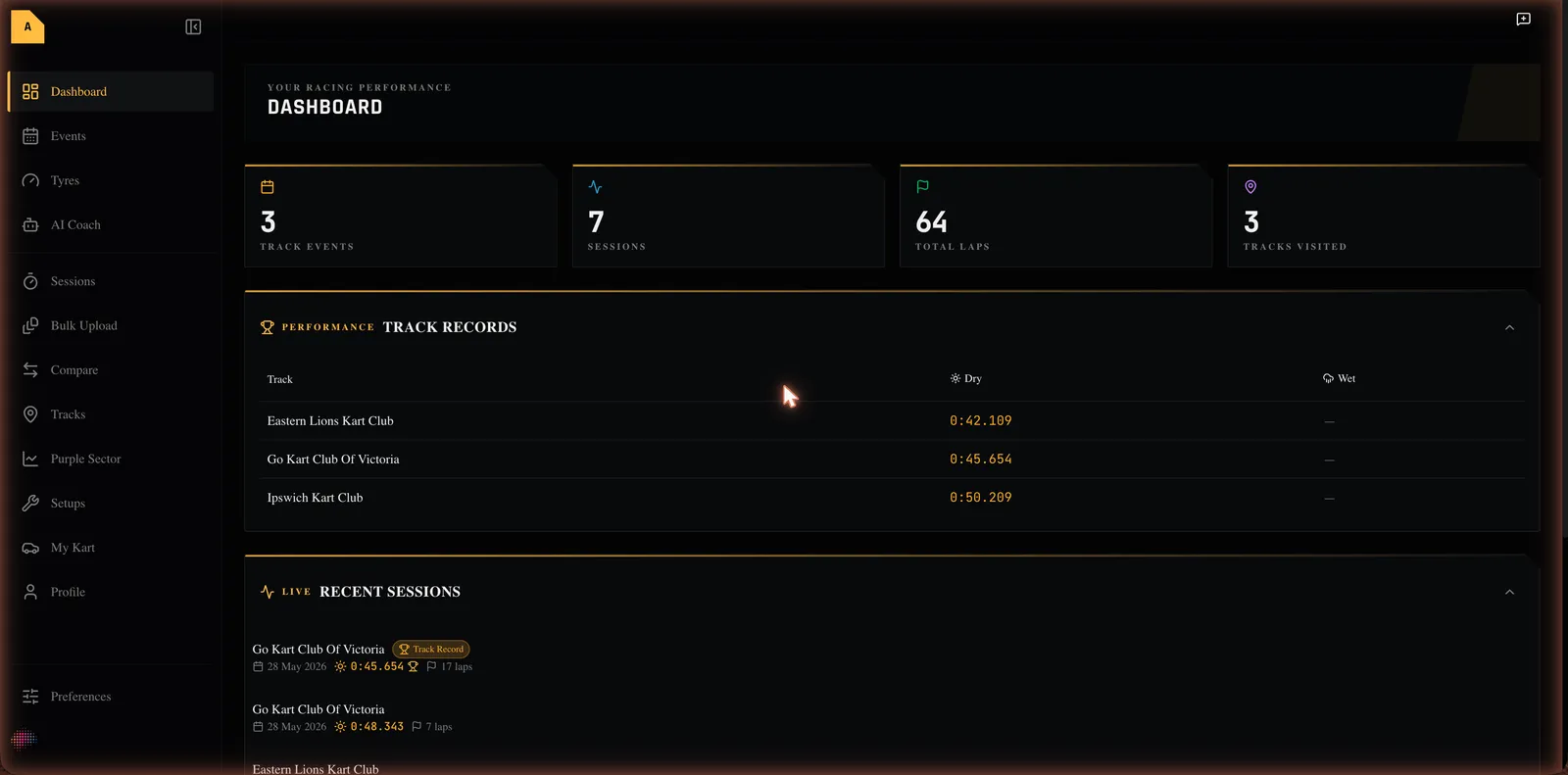
On a computer the sidebar runs down the left. It starts collapsed to icons and expands to show labels; a button at the top pins it open or collapsed. The items, in order, are:
- Dashboard — your home screen.
- Events — race meetings and test days.
- Tyres — the tyre pressure calculator.
- AI Coach — the coaching chat.
- Sessions — your recorded sessions.
- Bulk Upload — import many telemetry files at once.
- Compare — put sessions side by side.
- Tracks — the track database.
- Purple Sector — your worst corners across an event.
- Setups — your kart setups.
- My Kart — your kart garage.
- Profile — your driver details.
- Preferences — units, themes and import options.
Your account button sits at the bottom (and in the header on a phone). Its menu links to Profile, Preferences and Billing.
On a phone
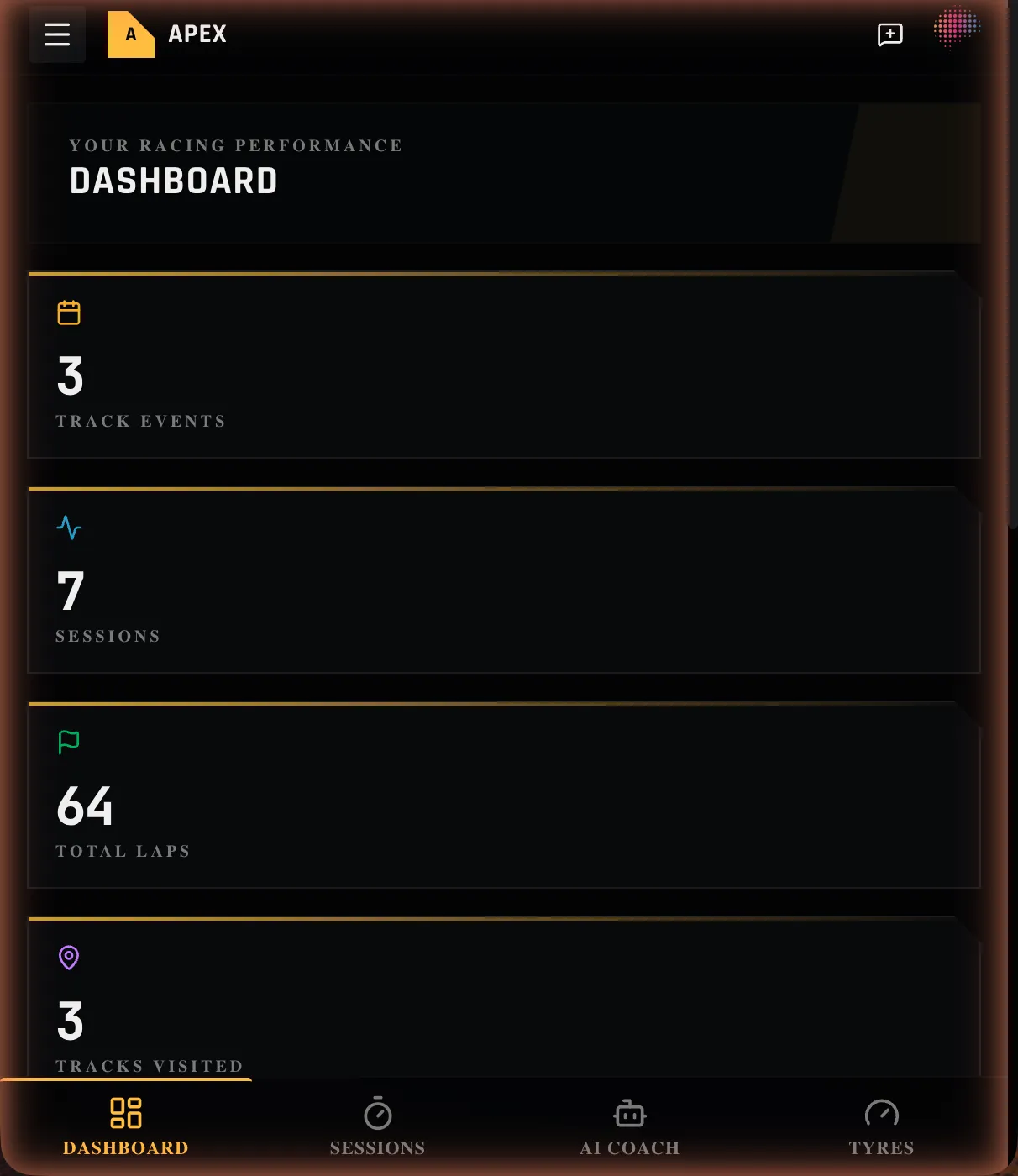
- A bottom navigation bar gives you the four most-used areas: Dashboard, Sessions, AI Coach and Tyres.
- The menu button (top-left) opens a drawer with the full list of areas — the same items as the sidebar.
- Your account button is in the header.
The header
The header runs along the top. It holds:
- a menu button on a phone (to open the navigation drawer);
- a Feedback button for sending feedback about the app;
- your account button, with its menu to Profile, Preferences and Billing.
Where to next
- Sign in and find your way around
- Unfamiliar word? See the Glossary. Stuck? See Troubleshooting & FAQ.