On this page
Setups — building and reusing your kart configuration
A setup is a saved record of how your kart is configured — chassis geometry, axle, seat, gearing, tyres and more. Apex lets you build setups once, assign a default to each track, and then fine-tune them per event and per session without losing the original. This chapter explains the Setups area and the way setups cascade from a track default down to a single session.
This chapter uses our demo driver, Jordan Miles (EKS Eagle chassis, home track Go Kart Club of Victoria).
What this is for
- Build kart setups, grouping every adjustable part into clear sections.
- Assign a default setup to each track, so new events start from the right baseline.
- Override any setting for a specific event, and again for a specific session, while the original setup stays untouched.
How to get here
In the sidebar, select Setups. The page header reads Setups / Manage Your Kart Setups.
The Setups list
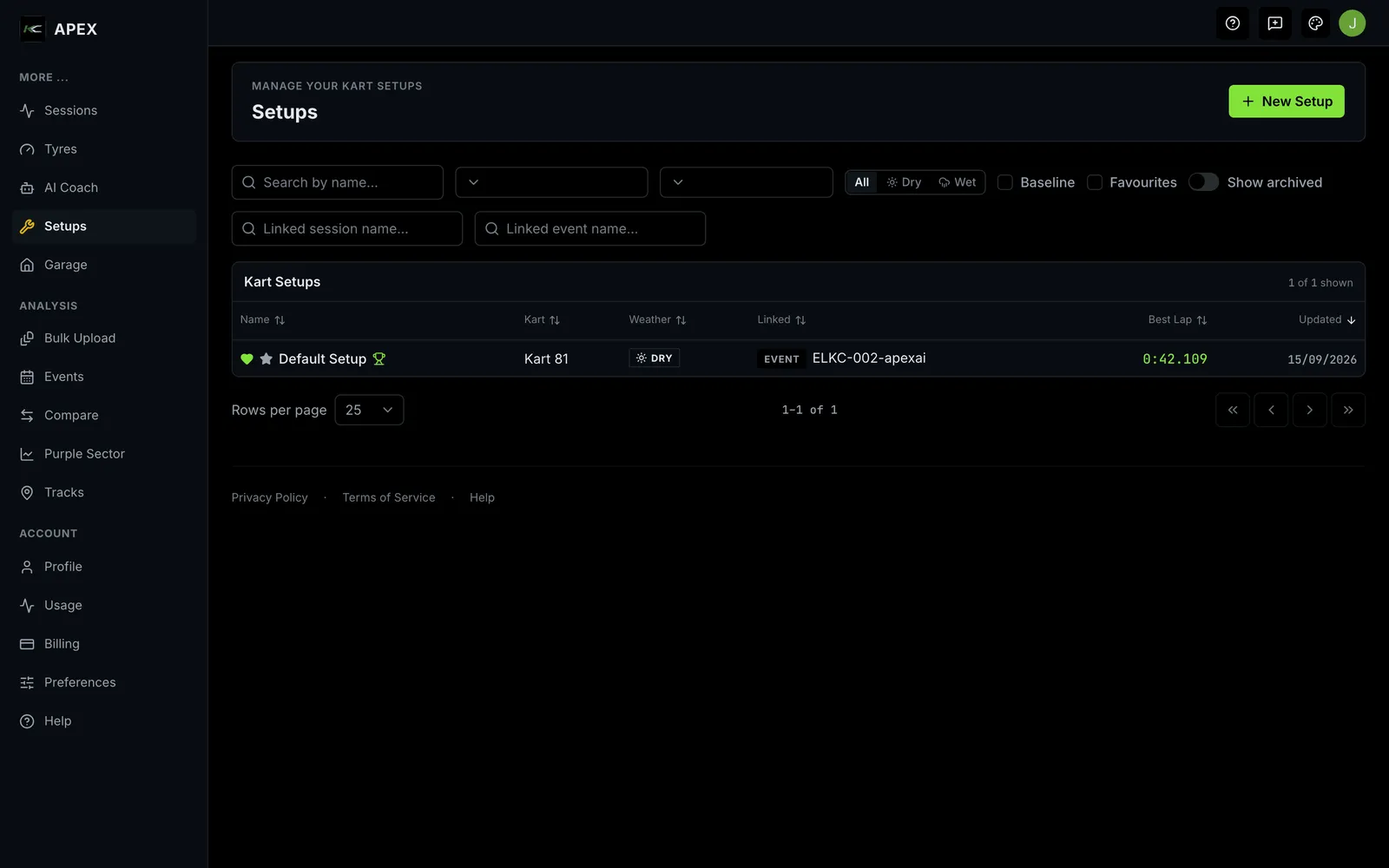
Each saved setup appears as a row showing its Name, the Kart it's for, the Weather it's built for (Dry or Wet), whether it's Linked to an event or session, its Best Lap, and when it was last Updated. Markers show if a setup is a Favourite (heart), a Baseline (star) or holds a track record (trophy).
Controls on the list:
- New Setup — start a new setup.
- Search by name…, plus filters for track, kart, weather (All / Dry / Wet), Baseline and Favourites, and text filters for linked session or event names.
- Select any row to open that setup.
- Empty state: "No setups match" with either "You haven't created any setups yet." or "Try adjusting the filters above."
Track Setup Defaults
On the Setups page, the Setup Defaults section (under a Track heading) maps each track to a default setup: "Assign a default setup for each track. New events will automatically use the assigned setup."
- Each row shows a track, its assigned default setup, and a Home badge for your home track.
- Add a default by choosing a track and a setup, then Add Default.
- Edit or remove a default per row. Removing one prompts: "Remove this track's default setup? New events at this track will fall back to your home track setup."
- Empty state: "No track defaults configured. Add one below to auto-populate setups when creating events."
Building a setup
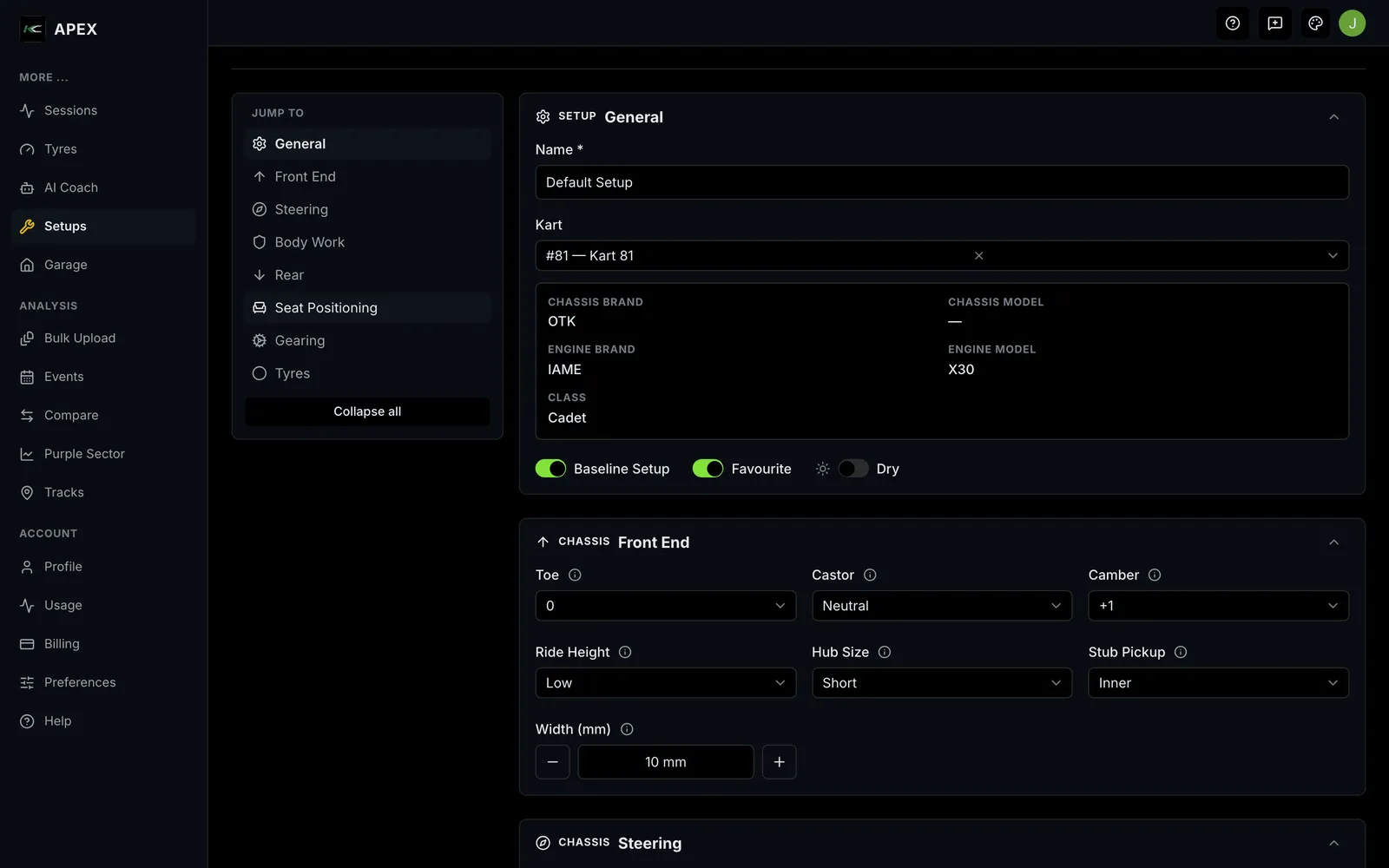
Opening New Setup (or an existing setup) shows a form split into eight collapsible sections, with a Jump to quick-nav and an Expand all / Collapse all toggle. The sections are:
| Section | What it covers |
|---|---|
| General | Name, kart, weather (Dry/Wet), and the Baseline / Favourite switches |
| Front End | Toe, castor, camber, ride height, hub size, stub pickup, front track width, torsion bar |
| Steering | Ackerman column, column pickup |
| Body Work | Crash bars (lower/upper), side pods, floor pan material and tightness |
| Rear | Rear track width, ride height, hubs, third bearing, axle length, axle type, bumper clamps |
| Seat Positioning | Seat brand and model, position, bolts, ballast position, stays |
| Gearing | Front sprocket, rear sprocket, and the auto-calculated gear ratio |
| Tyres | Tyre and wheel manufacturer/make, and the four corner pressures (PSI) |
Notes on key fields
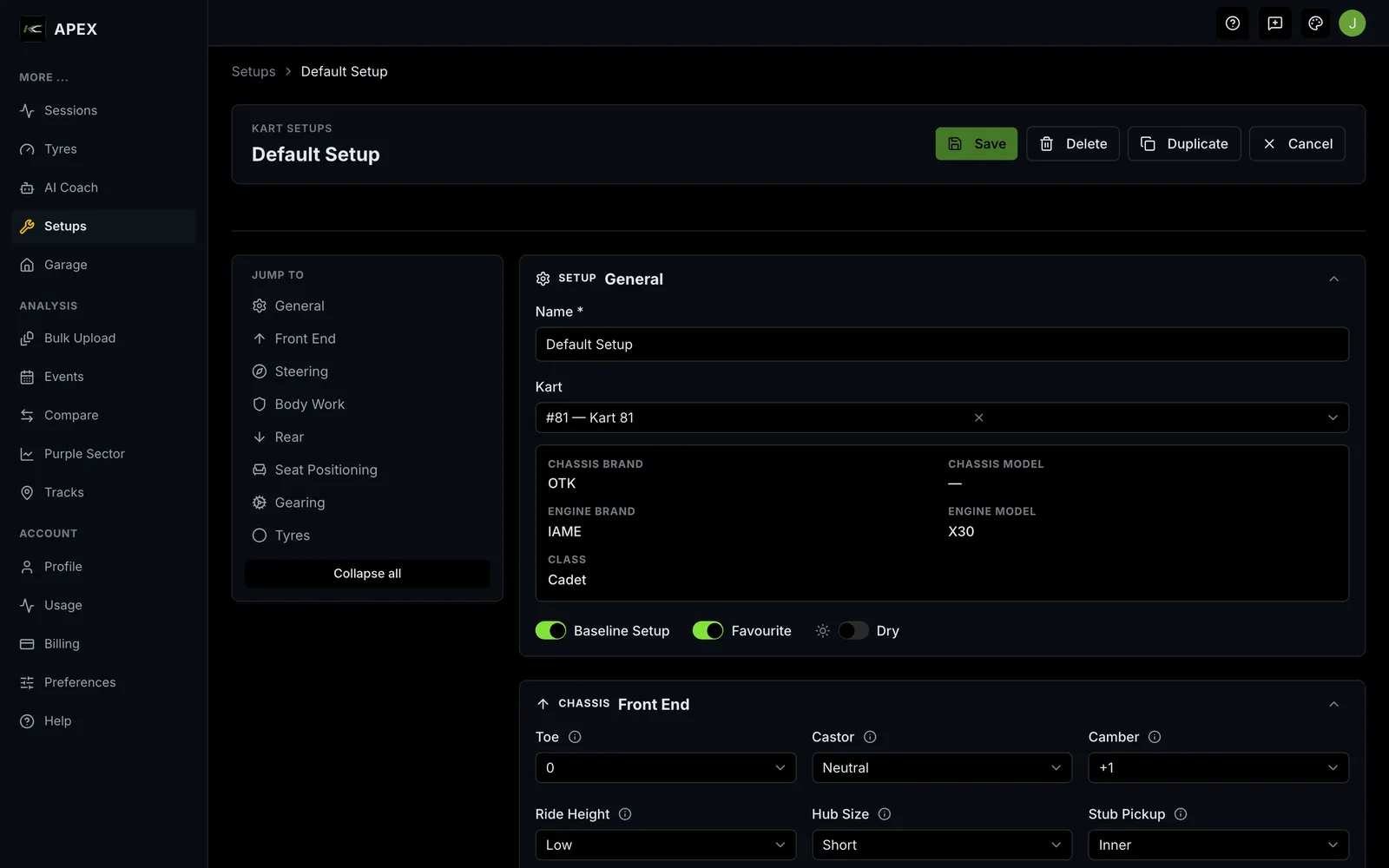
- Name is required; everything else is optional and can be left blank.
- Kart auto-fills to your primary kart on a new setup, and fills in the chassis details.
- Weather is a Dry/Wet choice so you can keep separate wet- and dry-weather setups.
- Gear Ratio is worked out for you from the front and rear sprockets — it's read-only.
- Tyre Make and Wheel Make stay locked until you choose their manufacturer first.
- Some fields appear only for certain kart classes (for example, several Rear and Seat options are hidden for Cadet karts).
Saving
- Save Setup stores your changes; Cancel discards them.
- On an existing setup you also get Delete (asks you to confirm — "Are you sure you want to delete …? This action cannot be undone.") and Duplicate (makes a copy you can adapt).
- If you try to leave with unsaved changes, Apex warns you so you don't lose work.
How setups cascade (inheritance)
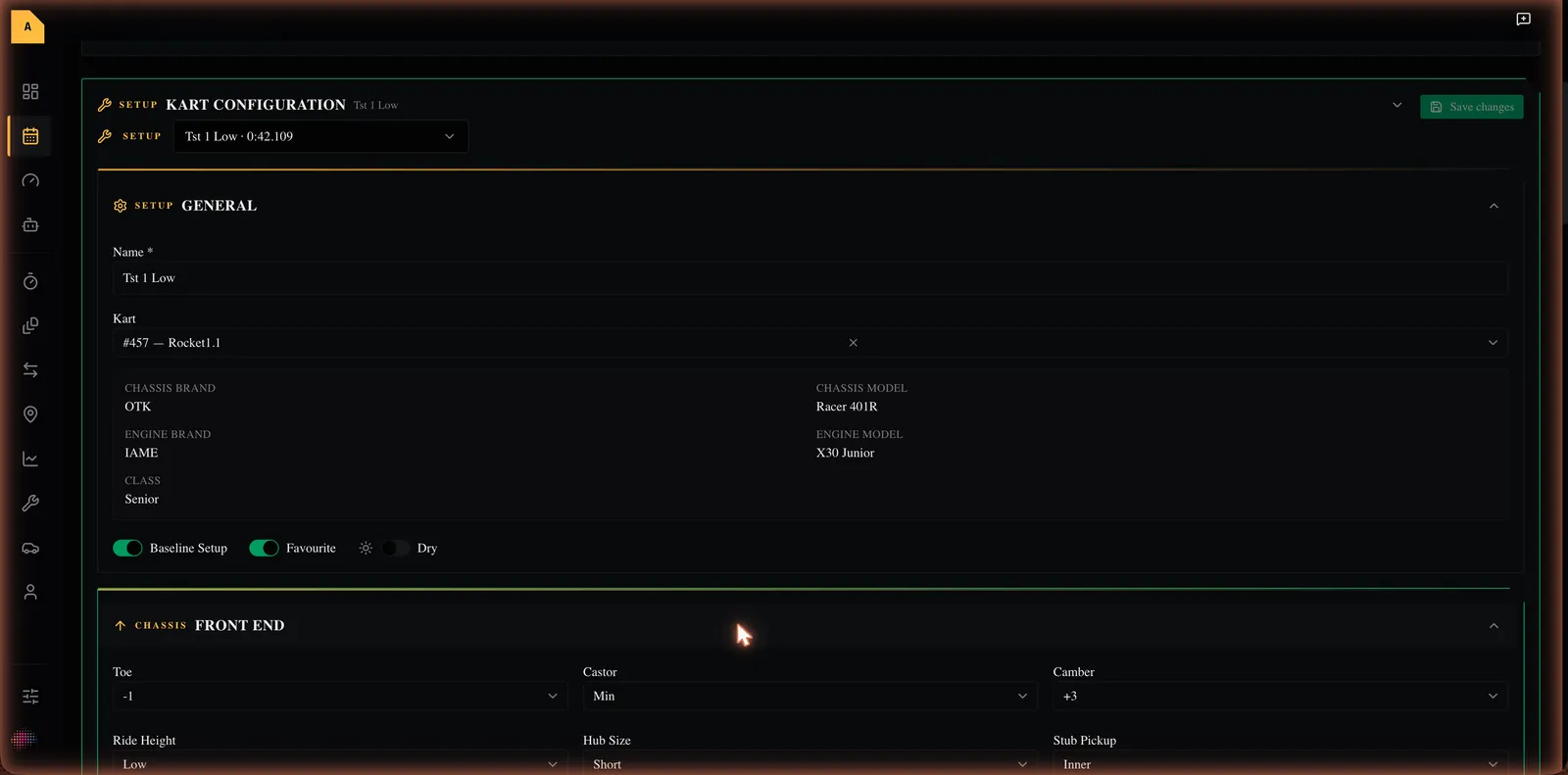
Apex resolves the setup for any session through three layers, each able to override the one above:
- Track default — the setup you assigned to that track (falling back to your home-track default if none is set).
- Event override — adjustments you make for one event. Only the fields you change are overridden; everything else is inherited from the track default.
- Session override — adjustments for one session, inheriting from the event override, then the track default.
"Inherit" means a field is left to take its value from the layer above; an explicit value means you've overridden it just for that level. You make event overrides on the event detail page and session overrides on the session detail page (both covered in their own chapters), each showing how many fields are overridden per section, with Reset to Baseline / Reset to inherited controls to clear them.
Heads-up: changing the chosen setup on a session is destructive — Apex confirms first, because it clears that session's overrides.
Empty, loading and error states
- No setups: the list shows "No setups match" / "You haven't created any setups yet."
- No track defaults: "No track defaults configured…"
- Loading: placeholder rows appear while setups load.
- Setup not found: opening a missing setup shows "Setup not found." with a link back to Setups.
Where to next
- Create a kart setup
- Set a default setup for a track
- Override a setup for an event or session
- Unfamiliar word? See the Glossary. Stuck? See Troubleshooting & FAQ.