On this page
Trackside My Kart — the kart, its tyres and its baseline setup
Everything else in the trackside app is about a session: what the kart did on a particular run, on a particular day. My Kart is about the kart itself — what it is, what is fitted to it, and what its baseline setup says — and it is the one trackside screen that does not change when you go out on track.
It is three screens behind three chips: the kart's profile, its Tyres, and its Setup.
This chapter covers trackside — the phone-first Apex app you use at the circuit. The laptop equivalent is a garage of every kart you own; see My Kart for that, and for adding a kart in the first place. This chapter is one kart, on a phone.
Throughout this chapter we follow Jordan Miles, our demo driver — an EKS Eagle at Go Kart Club of Victoria.
The kart we follow is Kart 81, a Cadet running number 81.
Read this before you type anything into these screens. Unsaved changes behave three different ways on this one surface, and only one of them warns you.
- The Edit details sheet does warn you. Try to close it with changes you have not saved and it asks "Discard unsaved changes?" first.
- The Setup Notes box on the profile screen does not. Type a note, tap a chip or a tab, and the note is gone with no prompt. Press Save notes before you navigate away.
- The Setup chip does not either — exactly as on the Trackside Setup screen. Press Save Setup first.
Closing or reloading the browser tab warns you in all three cases. Moving inside the app is what is unguarded.
What this is for
Use trackside My Kart to:
- Check what the kart actually is — chassis, engine, class, number — when you are filling in a form at a meeting and cannot remember which model is on the sticker.
- Correct a detail on the spot, from the phone, without opening a laptop.
- Read or adjust the kart's baseline setup and tyre pressures without going through the setup picker and choosing the right one.
- Leave yourself a note about the kart that is not about any one session.
Every pressure on these screens is in PSI. Every length is in millimetres.
How to get here
My Kart is not a tab. The bottom bar carries Sessions, Tyres, Setups, AI Coach and More — there is no My Kart in it. That makes it the trackside screen drivers are least likely to stumble on.
Open the "More" drawer from the bottom bar and tap "TS My Kart". That is the only way in from inside the trackside app: no other trackside screen links to it, and the laptop garage does not link to it either. The trackside surface — chapter 30, being written — will cover the drawer and what else is in it.
Once you are on it, the three chips move you between the three screens, and the bottom tab bar takes you back out.
A note on the menu. Apex builds its menus from a list the app is given, not from anything fixed in the software, so the wording and the position of TS My Kart in the drawer can differ between installations. If you cannot see it, it is in the drawer somewhere — look for the kart.
The three chips
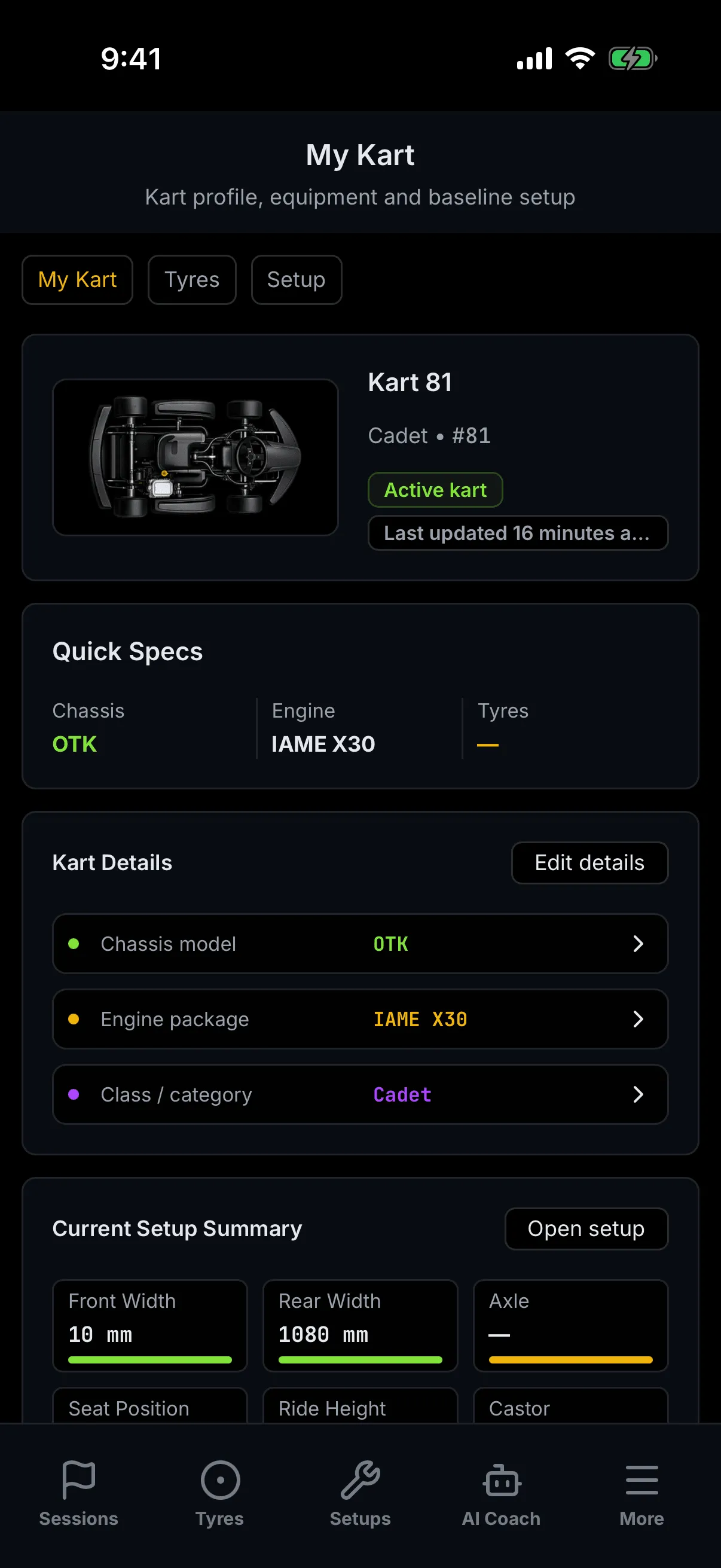
Three chips, always in this order:
| Chip | What it shows |
|---|---|
| My Kart | the kart's own profile — six cards, below |
| Tyres | the tyre section of the kart's default dry setup |
| Setup | the whole of that same setup, in the seven-section editor |
There is no History chip, and there is not meant to be one. Nothing is missing and nothing is switched off.
The chips always work. They sit above the content and never grey out — if there is nothing for them to show, it is the screen you land on that tells you so.
Tyres and Setup act on one particular setup: the kart's default dry setup. Not the setup a session used, and not a wet one. A kart can have a separate wet default, and neither of these two chips will ever open it — they are wired to the dry one only.
Neither screen tells you which setup you are on. There is no setup name, no date and no Dry badge on either of them, unlike the Trackside Setup screen you reach from the Setups tab. If you are at a wet meeting and you change four pressures here, you have changed your dry setup. To work on a wet setup, go to the Setups tab and open it by name.
The kart profile screen
Six cards, in this order. They all describe the one kart — your primary kart, or your first kart if you have not chosen a primary one.
The kart profile card
The card at the top has no heading of its own; the kart's name is the heading. Under it sits a
line of class • number — Cadet • #81 — and up to two badges:
- Active kart, in green, which appears only when this is the kart you have set as your primary one on the laptop. If Apex fell back to your first kart because you have not chosen a primary, the badge is absent.
- Last updated, giving a relative time — just now, then minutes, hours and days, and an ordinary date once it is more than a week old. If Apex cannot work out when the kart last changed, the whole badge is left off rather than shown empty.
The picture well on the left shows your kart's photo if one is stored, and a stock top-down kart drawing if not. That drawing is a real illustration, not a broken image and not a placeholder awaiting a fix.
You cannot add a photo from here — there is no control on this card at all. A kart photo has to be set elsewhere.
Quick Specs
Three cells and nothing else: Chassis, Engine and Tyres.
- Chassis is the chassis brand.
- Engine is the engine brand and model together.
- Tyres comes from the default dry setup, not from the kart — so it is blank until that setup has a tyre brand on it.
Anything Apex does not know shows as —. There is nothing to tap on this card.
Kart Details
Three rows — Chassis model, Engine package and Class / category — and an Edit details button.
Every row is a button, and so is the pill. All four open the same editing sheet, so you can tap straight on the thing you want to change rather than hunting for the pill. The arrow at the end of each row is decoration; the whole row is the target.
A row shows the brand on its own when the model has not been filled in — so Chassis model can read
OTKwhile the actual chassis model is still unset. If you want to know whether a model is recorded, open the sheet and look: the row cannot tell you apart a brand-only kart from a complete one.
Current Setup Summary
Six tiles taken from the kart's default dry setup — front width, rear width, axle, seat position, ride height and castor — plus an Open setup button that takes you to the Setup chip, and an All setups row that takes you out to the full setup list.
The two width tiles do not measure the same kind of thing, and they sit side by side with matching names. Rear Width is the kart's actual rear track, in millimetres, the number you would get off a tape measure. Front Width is an adjustment — a small figure, set in steps of five from nothing up to 50 mm. A front figure far smaller than the rear one is normal and is not an error.
The coloured bar under each tile is decoration. It does not grade anything.
With no default setup the card shrinks to a single line, "No default setup selected", the six tiles and the Open setup button disappear — and the All setups row stays, which is the way out.
Tyres & Maintenance
One row, Current tyre set, naming the tyre brand and make from the default dry setup — the same value the Quick Specs Tyres cell shows.
The row is a link to the Tyres chip, and it is the only place on the profile screen that takes you there other than the chip itself. Nothing on this card is editable.
Setup Notes
This one you can type into, straight on the card — a free-text box for anything about the kart that is not about a session. Fitted a new axle, or a note to yourself about which sprocket is on it.
The Save notes button appears only once you have typed something. A clean card has no save control at all, which is the signal that there is nothing waiting to be saved. Saving tells you "Notes saved."
This is the box the warning at the top of the chapter is about. Nothing stops you navigating away with an unsaved note. If Save notes is on screen, press it before you touch a chip or a tab.
Editing your kart's details
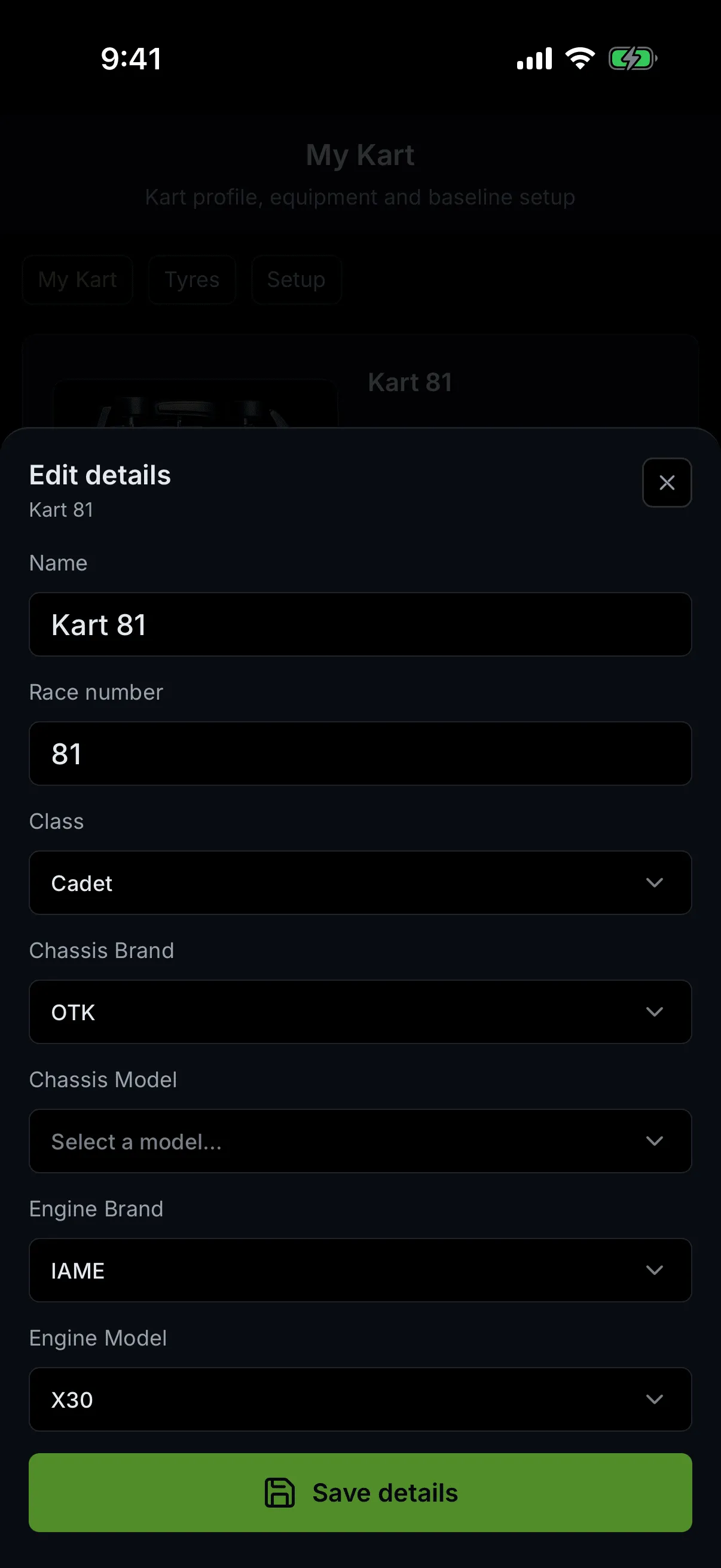
Tap Edit details, or any of the three Kart Details rows, and a sheet slides up over the screen.
It edits seven things and only seven:
| Field | Notes |
|---|---|
| Name | what the kart is called throughout Apex |
| Race number | free text, up to 10 characters |
| Class | pick from the catalogue |
| Chassis Brand → Chassis Model | the model list is filled from the brand |
| Engine Brand → Engine Model | likewise |
What it cannot change: the kart's year, its weight, its status, its photo, and anything in its setup. Those are laptop jobs — see My Kart.
The two brand-and-model pairs cascade. The model list is disabled until you have chosen a brand, and reads "Select a brand first" until you do. Changing a brand clears its model, because the old model does not belong to the new brand.
Closing the sheet with unsaved changes asks first. You get "Discard unsaved changes?" with two choices — Keep editing, which puts you back in the form with everything intact, and Discard, which throws the changes away and closes. That applies however you try to leave: the ✕, the Escape key, or tapping the dimmed area behind the sheet. There is no swipe-down.
While a save is in flight the sheet will not close at all. That is deliberate — it stops you leaving mid-write.
On success you get "Kart details updated." and the sheet closes on its own.
One thing worth knowing. If you clear the race number and save, the sheet simply closes and the old number stays. Clearing the field is not a way to remove a race number.
The Tyres chip
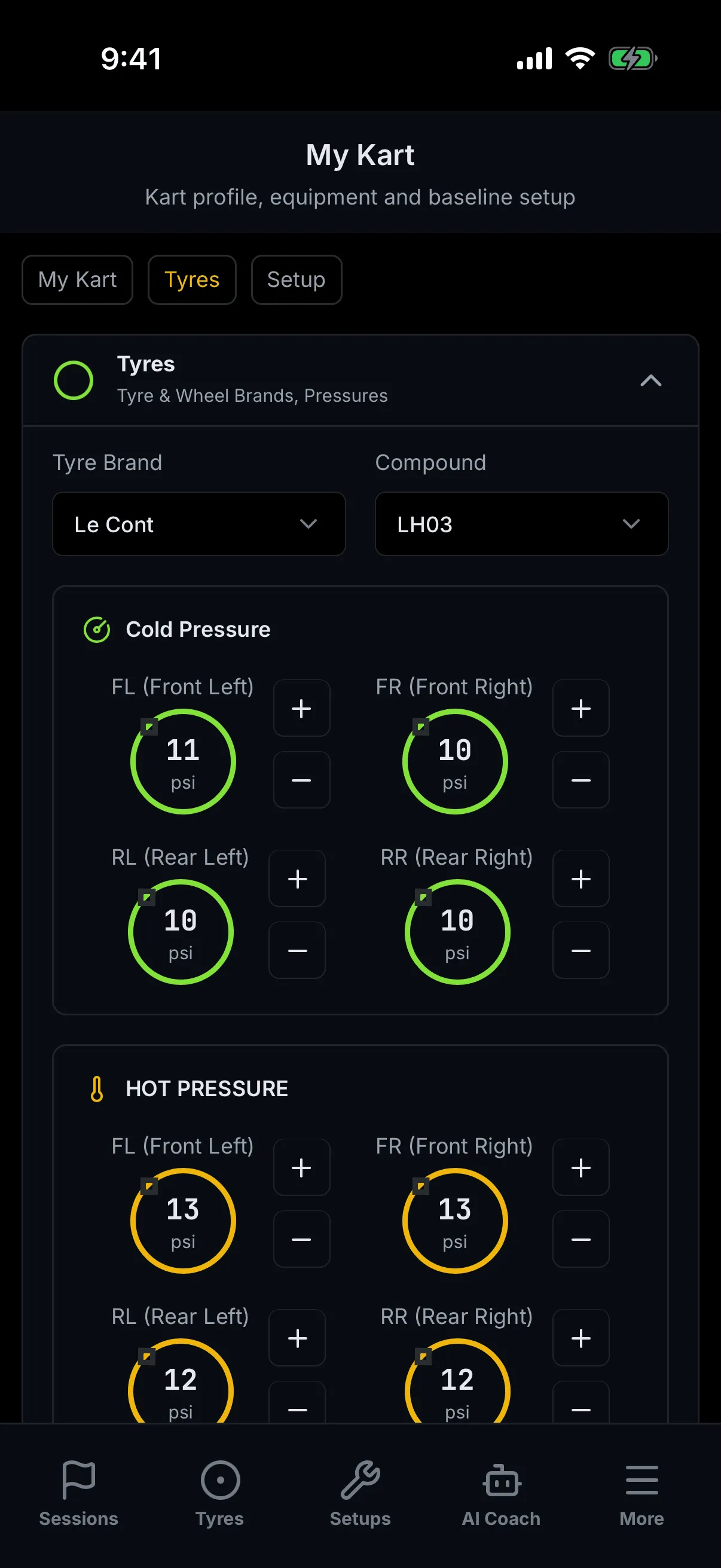
This is not the tyre calculator. It is the Tyres section of your setup, lifted out and shown on its own — the same section you would reach by opening the setup and scrolling to Tyres.
So it records what is on the kart and what you put in the tyres. It does not work out a pressure for you. For that, use the Tyres tab in the bottom bar — see Trackside Tyres — which takes a target and tells you what to set.
What is on the screen:
- Tyre Brand and Compound, from the catalogue.
- Cold Pressure — four gauges, front left, front right, rear left, rear right, each with + and −.
- Hot Pressure — the same four, for what you measured coming in.
These values are saved to the kart's default dry setup, not to a session. Changing them here changes your baseline.
The Setup chip
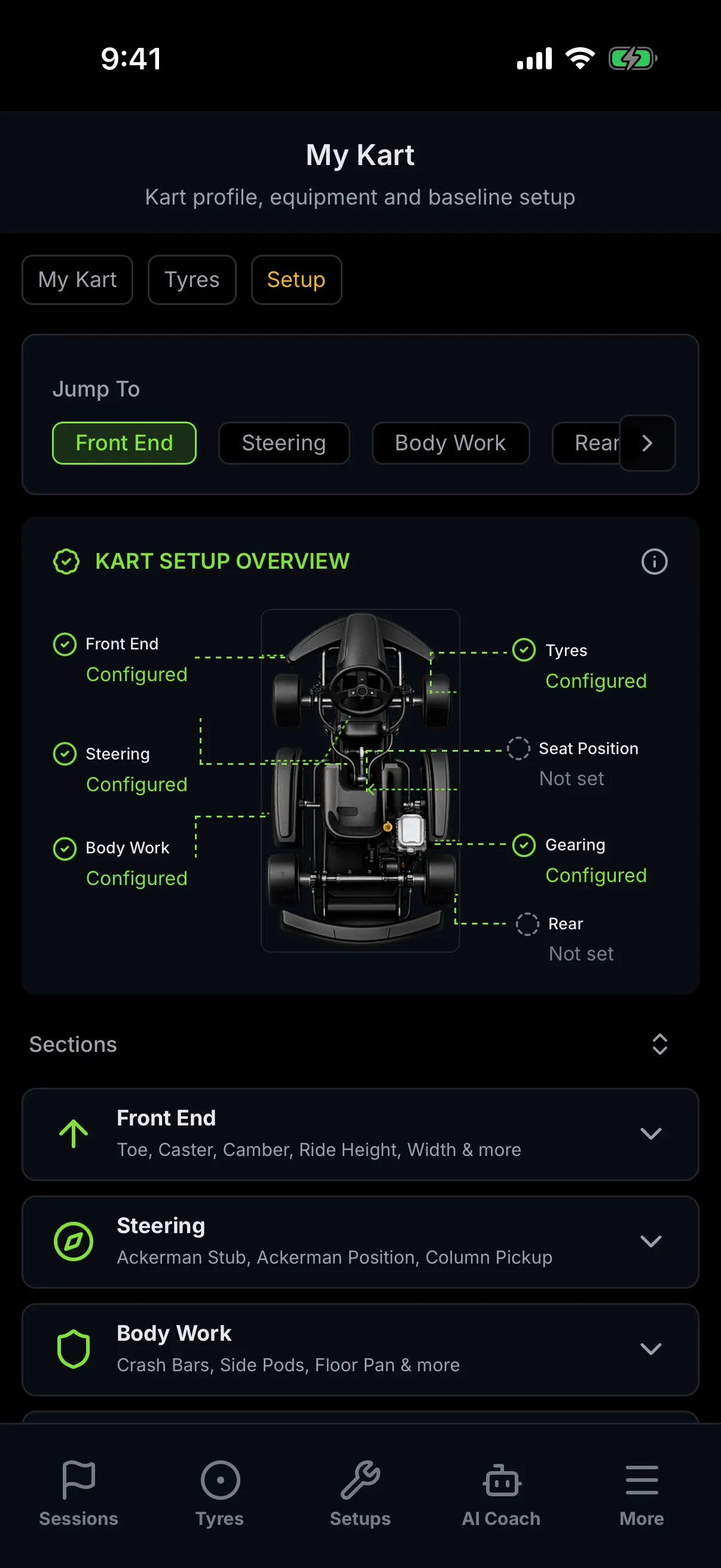
The Setup chip is the whole setup editor, on the kart's default dry setup — the same editor documented in Trackside Setup, and everything that chapter says about the Jump To rail, the Kart Setup Overview, the seven sections and the Save Setup bar applies here unchanged.
Two differences are worth knowing, and both are about what is missing:
- There is no header identifying the setup. Open the same setup from the Setups tab and you get its name, its date, a Dry badge and a favourite heart across the top. Here you get the My Kart header instead. The screen does not tell you which setup you are editing.
- There is no way back to the setup list from the screen itself — no
‹ Setupsarrow. Use the chips, or the Setups tab in the bottom bar.
Everything else is identical, including that leaving with unsaved changes loses them.
Which to use. Come here when you want the kart's baseline and do not want to pick it out of a list. Go to the Setups tab when you want a particular setup — a wet one, one for another circuit, or one you want to check the name of before you change it.
When there is nothing to show
Two different empty screens, with two different answers.
No kart at all. All three chips show one line:
"No karts yet. Add your kart from the dashboard garage to use My Kart."
There is no picture and no button. Karts are added on a laptop, in the garage — see My Kart.
A kart, but no default setup. The kart profile screen works normally; the Current Setup Summary card collapses to "No default setup selected", and the Quick Specs Tyres cell and the Current tyre set row both read —, because all three read from the setup that is not there.
The Tyres and Setup chips still open, and each shows:
"No default setup selected. Choose one from All setups."
On those two screens that sentence is not a link, so here is what it means: tap the Setups tab in the bottom bar. That is "All setups". Open the setup you want to be the kart's baseline, and set it as the default. The All setups row on the Current Setup Summary card goes to the same place, and that one is a link.
Where to next
- My Kart — the laptop garage: adding a kart, editing everything this sheet cannot, and choosing your primary kart.
- The trackside surface (chapter 30, being written) — the "More" drawer this screen lives in, and the rest of the trackside app.
- Trackside Setup — the seven-section editor in full, and picking a particular setup by name.
- Trackside Tyres — the pressure calculator, which is a different screen from the Tyres chip here.
- Setups — how track defaults, event overrides and session overrides cascade on the laptop.
- Unfamiliar word? See the Glossary. Stuck? See Troubleshooting & FAQ.