On this page
Sessions — uploading, reviewing and comparing your track time
A session is one run on track — a practice outing, a qualifying run, a heat or a race — together with all the laps and telemetry recorded during it. The Sessions area is where you bring your AiM data logger files into Apex, browse everything you've recorded, dig into a single session lap by lap, and put two or more sessions side by side to see what changed.
This chapter uses our demo driver, Jordan Miles (EKS Eagle chassis, home track Go Kart Club of Victoria).
What this is for
- Upload telemetry from your AiM logger (XRK/XRZ files) so Apex can analyse it.
- Browse all your sessions, grouped by track, with search and filters.
- Review a single session: lap times, sectors, telemetry charts, a GPS track map, turn analysis, weather, kart setup, and AI analysis.
- Compare up to four sessions to spot where the time goes.
How to get here
In the sidebar, select Sessions. Related items sit nearby: Bulk Upload (import many files at once) and Compare (put sessions side by side). On a phone, Sessions is in the bottom navigation bar.
The Sessions list
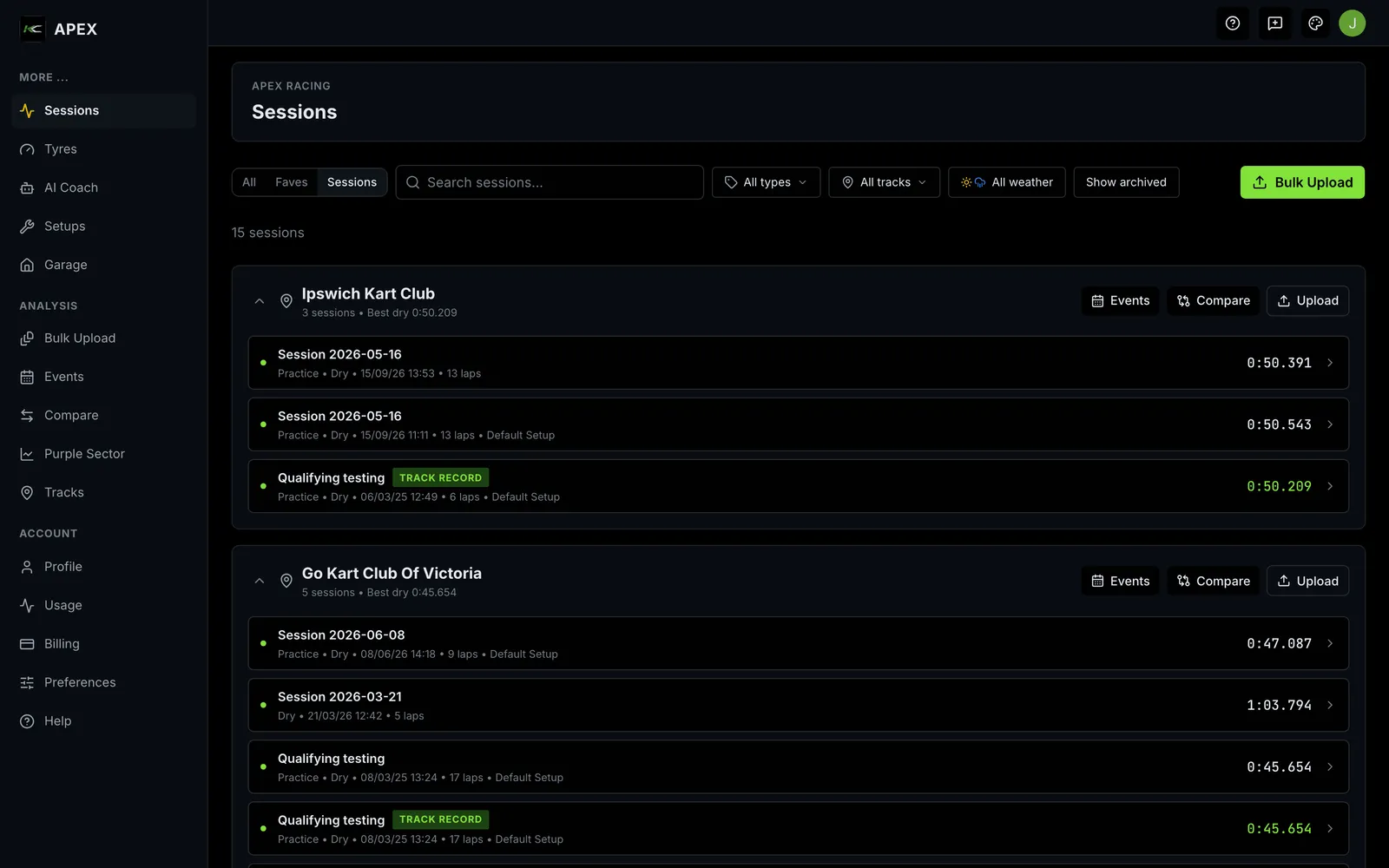
The list page header reads Sessions / Analyse Your Sessions. Your sessions are grouped into cards, one per track; each track card shows how many sessions it holds and expands to reveal them.
Filters and search
| Control | What it does | Options / default |
|---|---|---|
| Search sessions… | Filters by session name or track name as you type. | Free text; empty by default |
| Session type | Narrows to one type of session. | All, Practice, Test, Qualifying, Race (default All) |
| Track | Narrows to one track. | Any track that has sessions |
| Weather | Cycles through weather. | All → Dry → Wet (default All) |
| Track scope | Which tracks to show. | All Tracks, My Favourite Tracks, Tracks with Sessions (default All Tracks) |
What each session shows
Inside a track card, every session shows its name (which you can rename in place), the date and time, and the track. Expand a session to see its laps count, best lap time, the setup name if one is attached, and a session type badge (Race, Qualifying, Practice or Test).
- Bulk Upload (top of the page) opens the multi-file importer.
- Selecting two or more sessions reveals a Compare button that opens them side by side.
- Empty state: if nothing matches, you'll see "No sessions found" with "Try adjusting your filters or search term."
Importing telemetry
Apex reads AiM data-logger files with the .xrk or .xrz extension. Each file can be up to 50 MB. There are two ways in: a single-file upload and a bulk importer.
Accepted files and limits
- File types: .xrk or .xrz only.
- Maximum size: 50 MB per file.
- Bulk importer: up to 20 files at once.
- Common errors you might see: "File must be .xrk or .xrz", "File too large — maximum 50 MB", "File is empty".
Bulk Upload
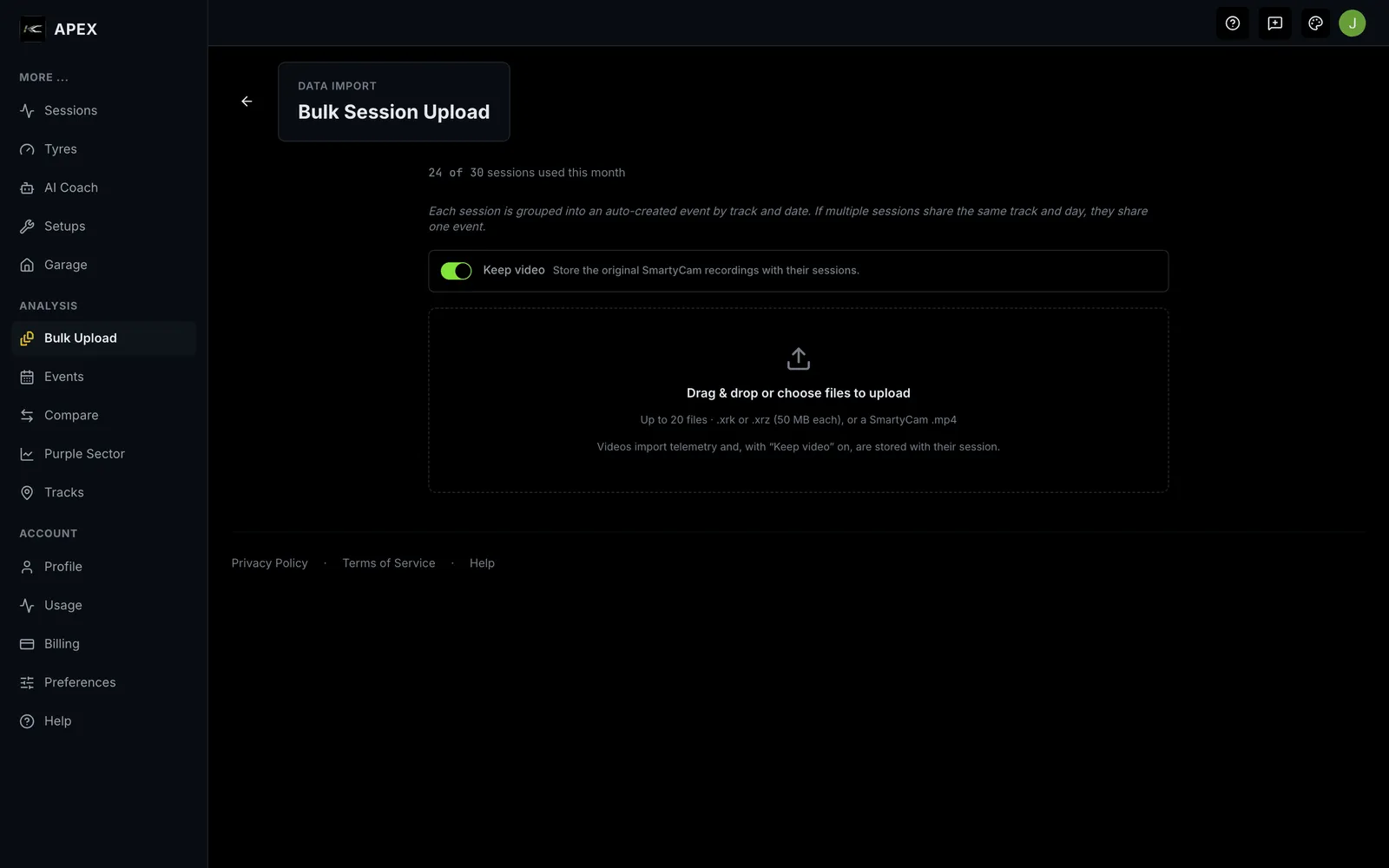
The Bulk Session Upload page (header: Bulk Session Upload / Data Import) lets you drag in many files at once. A note on the page explains the grouping: "Each session is grouped into an auto-created event by track and date. If multiple sessions share the same track and day, they share one event."
- In the sidebar, select Sessions, then choose Bulk Upload.
- Drag your files onto the drop area, or select Drag files here or click to browse.
- Wait for each file to be read — Apex pulls the driver, track, date, lap count and best lap from the file.
- In the review table, check the Track for each row. If Apex matched it automatically it's shown read-only; otherwise pick the track from the Select track… list.
- Select Ingest to import the reviewed rows.
- What you'll see: a progress count (e.g. "3 of 5"), then a green banner — "{N} session(s) imported successfully." — with a View sessions button.
Single-file upload
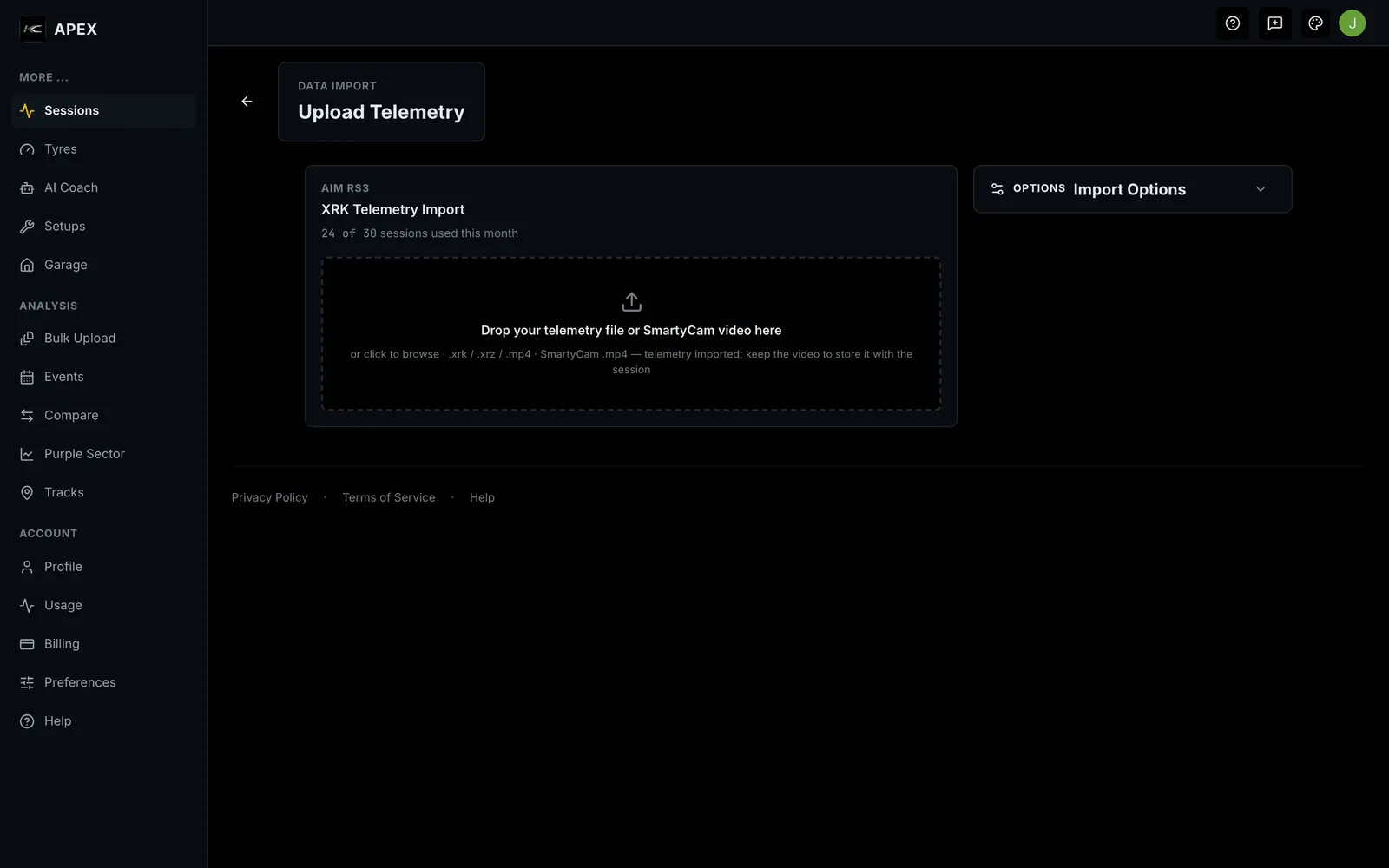
The single Telemetry Upload page handles one file with a few options:
- Top N Laps — how many of your fastest laps to store full detailed telemetry for (default 3).
- Force Re-upload — re-import a file you've uploaded before (off by default).
- Weather — a Dry / Wet toggle for the session's conditions.
After a successful import you'll see an Import Complete / Session Loaded card summarising the Driver, Venue, Best Lap, Laps, telemetry Channels and Samples, with a New or Re-imported badge. If the same file was already uploaded you'll get a duplicate warning and a Force Re-upload option.
The session detail page
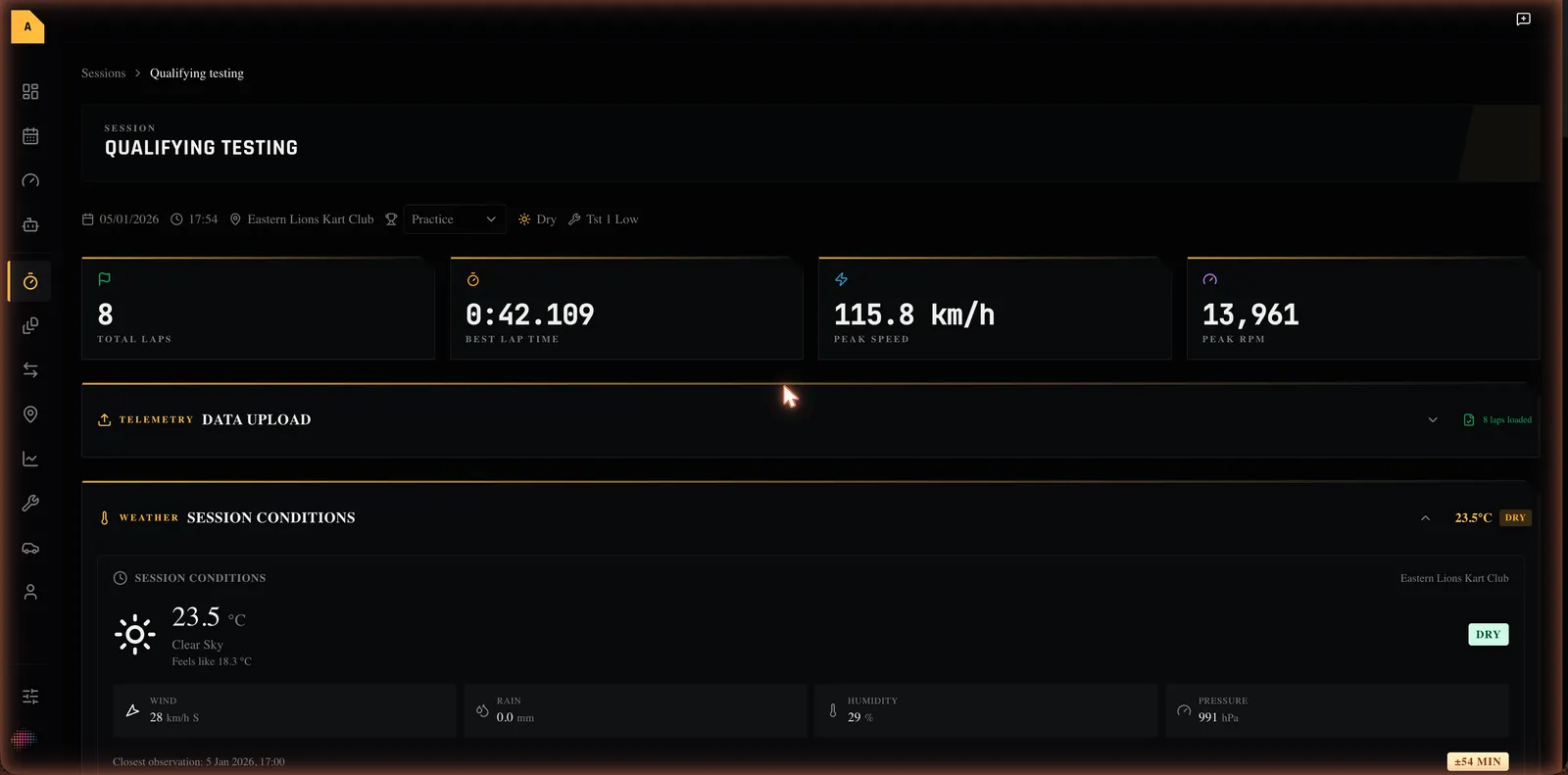
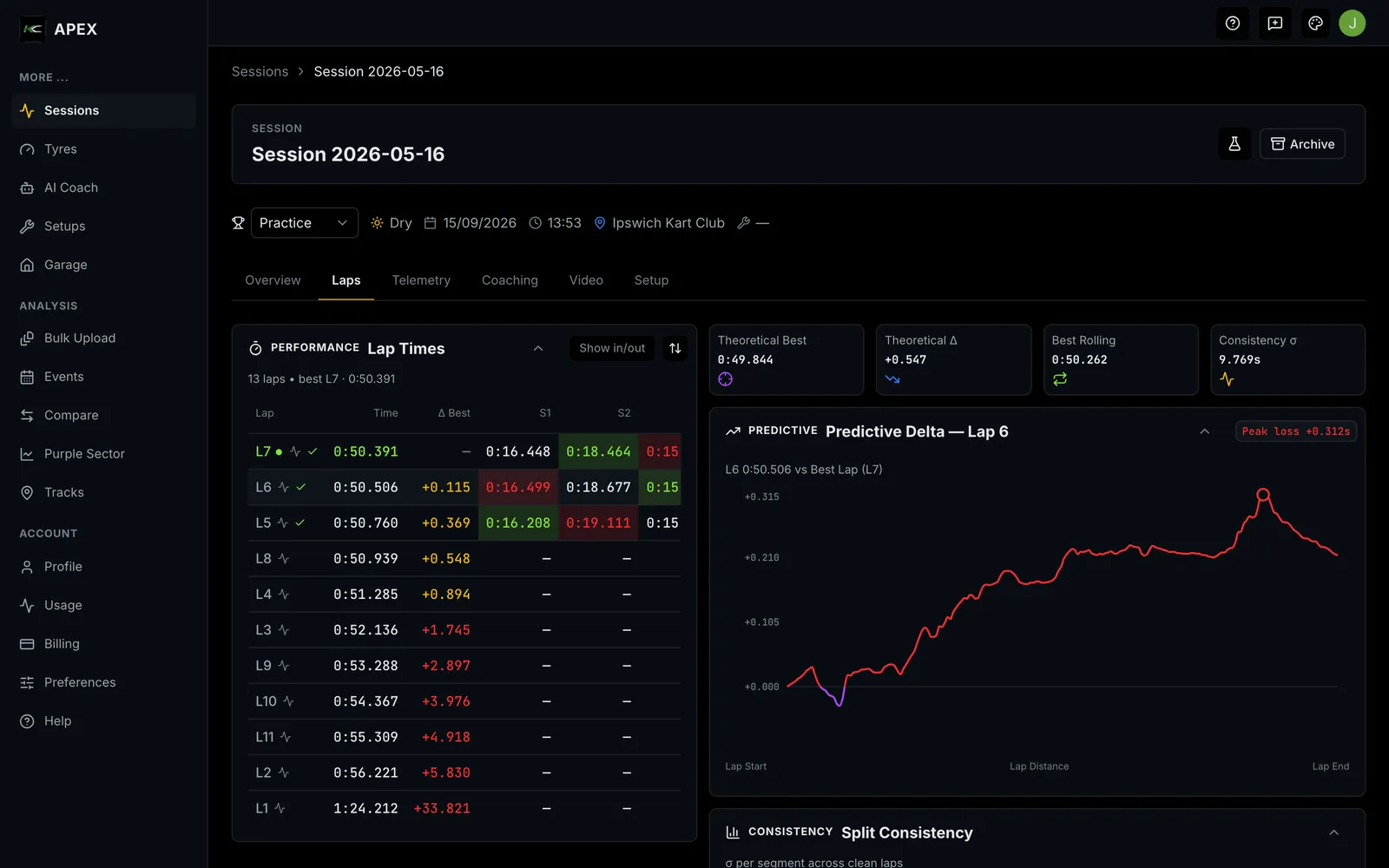
Opening a session shows its name as the page title (you can rename it in place), with a row of chips for date, time, track, session type (also editable), weather, and setup. Below that, four stat cards summarise the session:
| Stat card | What it shows |
|---|---|
| Total Laps | How many laps were recorded |
| Best Lap | Your fastest lap time (e.g. 0:48.193) |
| Peak Speed | Highest speed reached, in km/h |
| Peak RPM | Highest engine RPM reached |
The rest of the page is a series of collapsible sections:
- XRK Telemetry Upload — attach or replace the telemetry file for this session. Shows a Telemetry loaded badge once done; a duplicate file gives a Force Re-upload option.
- Session Conditions (Weather) — temperature and a Dry/Wet badge for the session.
- Kart Configuration — the kart setup for this session. If none is attached you'll see "No setup assigned to this session. Select one of your setups to create a session-level copy.", a Dry/Wet conditions toggle, a setup picker, and a Create Session Setup button. (The full setup field set is covered in the Setups chapter.)
- AI Analysis — AI-written commentary on the session.
- Lap Times — a table of every lap with its time, Δ Best (gap to your best lap), and each sector time; fastest and slowest sectors are highlighted. Out-laps, in-laps and your BEST lap are tagged. Two toggles let you hide in/out laps and sort by gap instead of lap number.
- Turn Analysis — per-corner performance.
- Telemetry Visualisation — charts of speed, RPM, throttle and braking across the lap.
- GPS Lap Trace — your lap drawn on a track map.
- Notes — any notes saved with the session.
- Danger Zone — Delete this session (asks you to confirm; cannot be undone).
Comparing sessions
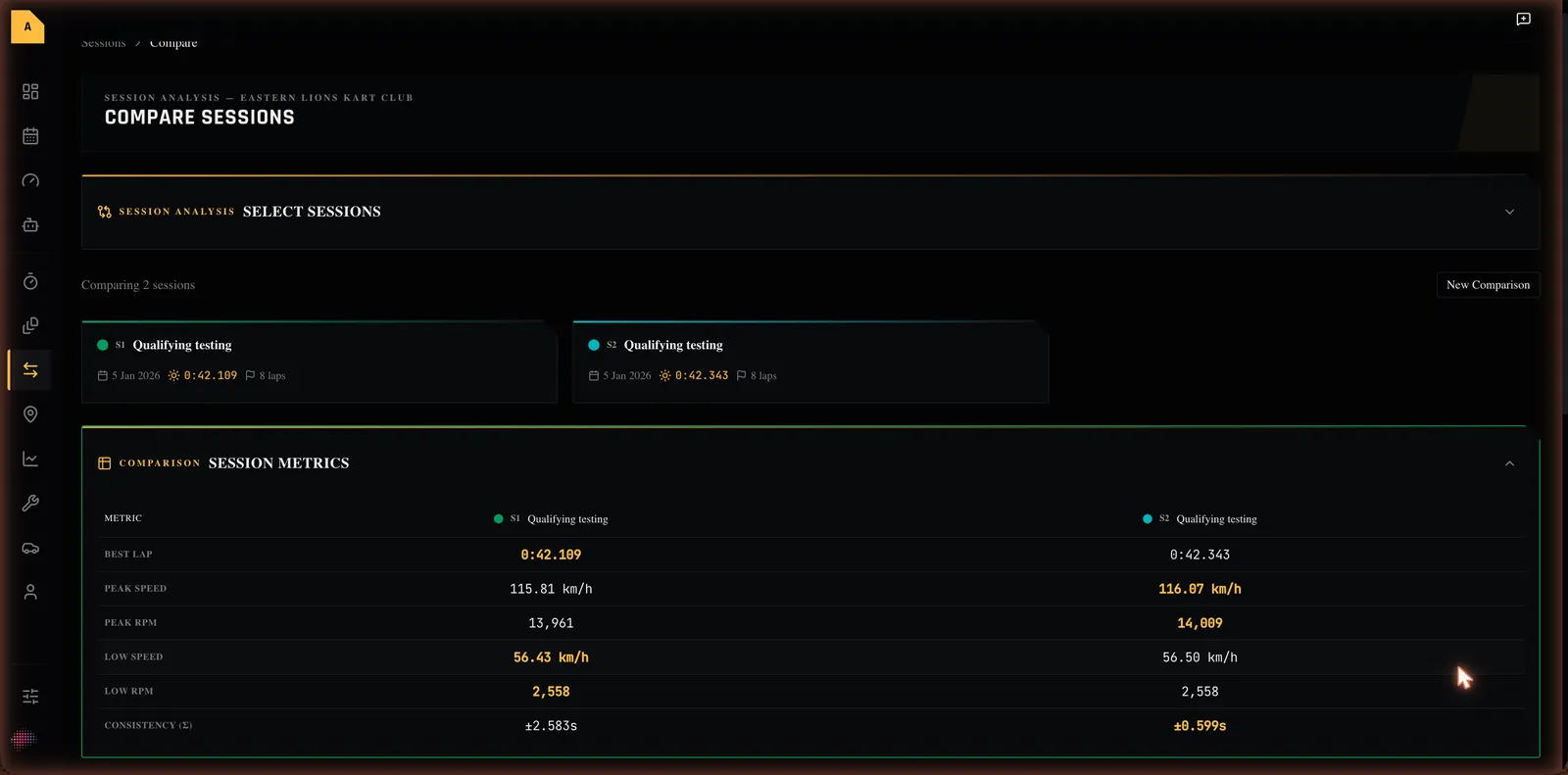
The Session Comparison page puts up to four sessions side by side, each given a colour and a label (S1–S4).
- From the Sessions list, expand a track and select two or more sessions.
- Select Compare.
- On the comparison page, adjust the line-up if needed — filter by track, by weather (All / Dry / Wet), or search by name, then pick sessions from the list (sorted fastest first).
What you'll see:
- Overview cards — one per session with its best lap and key details; select a card to open that session.
- Lap Time Deltas — a chart of how each session's lap times differ, lap by lap.
- Kart Configuration — the setups side by side, with differences highlighted.
- Lap-by-Lap comparison — a table of metrics (best lap, peak speed, peak RPM, average speed, consistency) with the best value in each row highlighted.
Empty, loading and error states
- No sessions yet: the list shows "No sessions found".
- Loading: placeholder track cards appear while your sessions load.
- Session not found: opening a missing session shows "Session not found".
- Upload problems: invalid file type, oversized file, empty file, or a duplicate each show a clear message (see Importing telemetry above).
Where to next
- Session Hub — the same sessions on a phone at the circuit, where one session opens on five screens and the upload is one tap from the toolbar.
- Upload a telemetry session
- Bulk upload many sessions
- Review a session in detail
- Compare two sessions
- Rename a session or change its type
- Unfamiliar word? See the Glossary. Stuck? See Troubleshooting & FAQ.