On this page
Settings & Preferences — units, themes and your subscription
The Preferences page is where you tailor Apex to suit you: choose metric or imperial units, set which page opens when you sign in, control how telemetry is imported, and pick from four motorsport themes in dark or light mode. This chapter also covers your subscription and billing.
This chapter uses our demo driver, Jordan Miles.
What this is for
- Set your units, start page and telemetry import preferences.
- Choose a visual theme and dark/light mode.
- Manage your subscription.
How to get here
In the sidebar, select Preferences. The page header reads Preferences / Customise your app experience.
Preferences
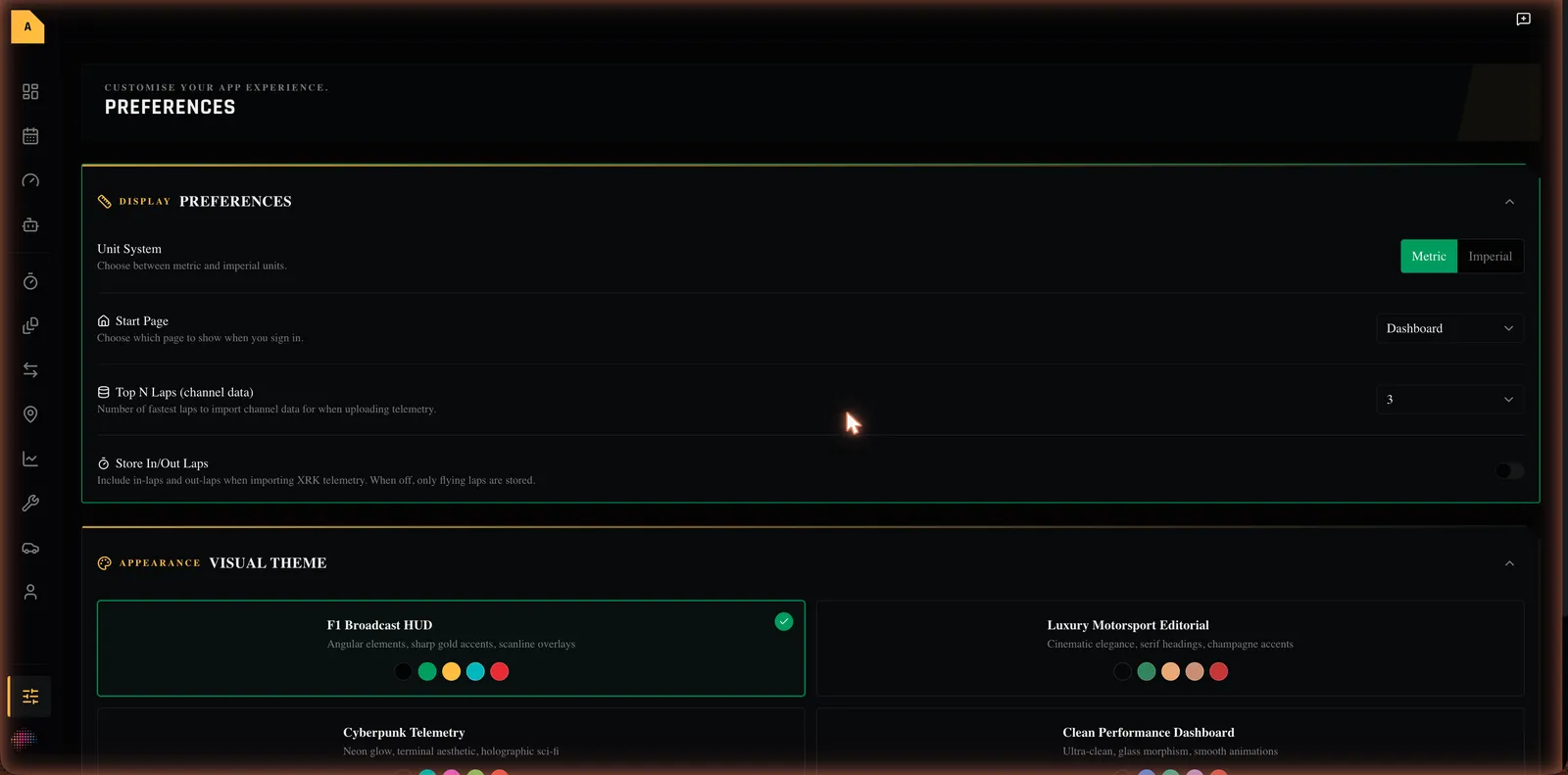
| Setting | What it does | Options / default |
|---|---|---|
| Unit System | Switches measurements between metric and imperial. | Metric / Imperial (default Metric) |
| Start Page | The page that opens when you sign in. | Dashboard, Track Events, Tyres, AI Coach, Home Track (default Dashboard) |
| Top N Laps (channel data) | How many of your fastest laps get full detailed telemetry on import. | 1, 3, 5, 10 (default 3) |
| Store In/Out Laps | Whether to keep in-laps and out-laps when importing. When off, only flying laps are stored. | On / Off (default Off) |
When you change Store In/Out Laps you'll see a brief confirmation, for example "In/out laps will be stored on future imports".
Visual themes
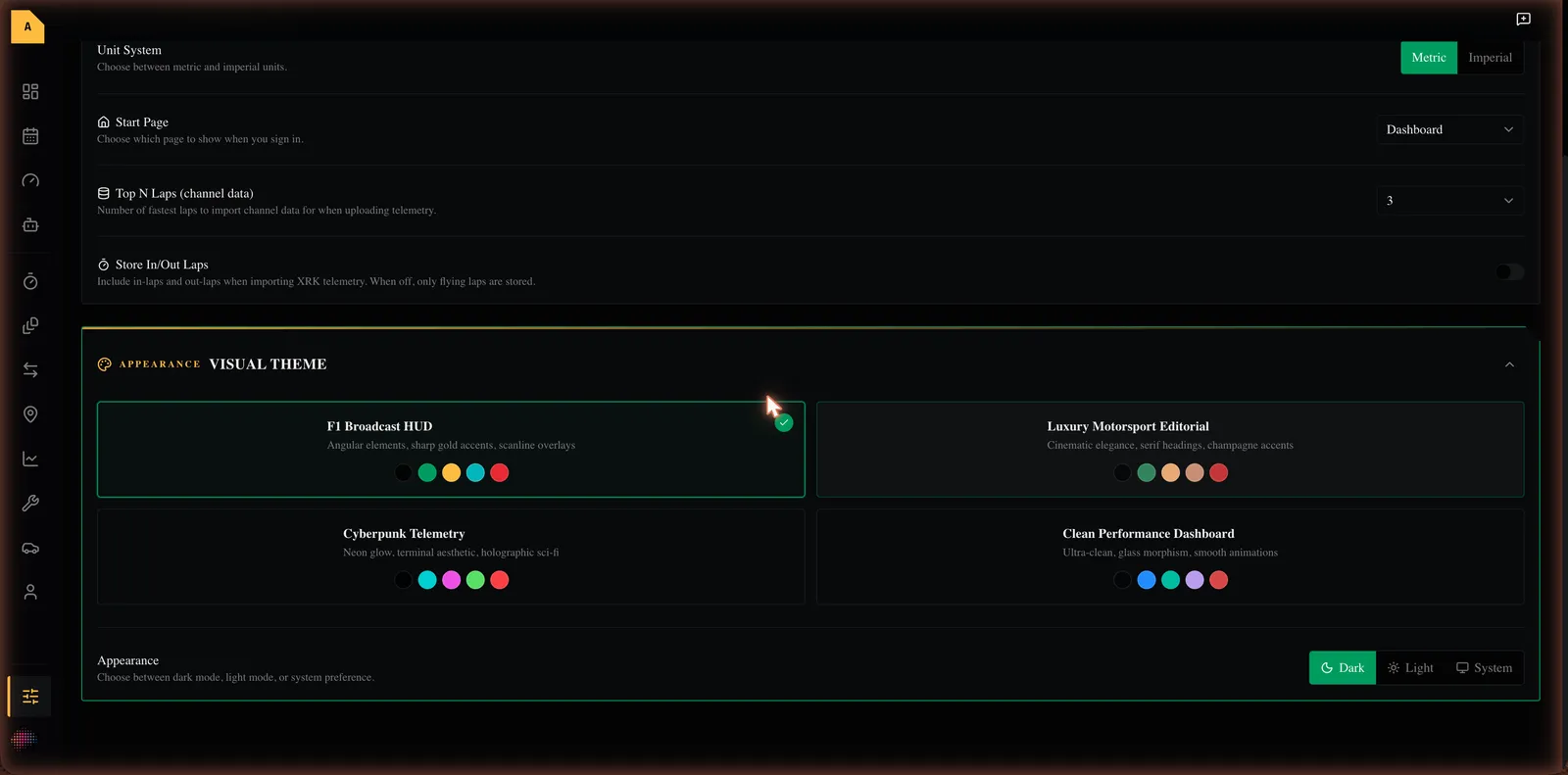
Apex ships with four motorsport themes. Pick one in the Visual Theme section; each shows a short description and a set of colour swatches.
| Theme | Description |
|---|---|
| F1 Broadcast HUD (default) | Angular elements, sharp gold accents, scanline overlays |
| Luxury Motorsport Editorial | Cinematic elegance, serif headings, champagne accents |
| Cyberpunk Telemetry | Neon glow, terminal aesthetic, holographic sci-fi |
| Clean Performance Dashboard | Ultra-clean, glass morphism, smooth animations |
Below the themes, Appearance sets the mode: Dark, Light or System (which follows your device). The default is dark.
Subscription and billing
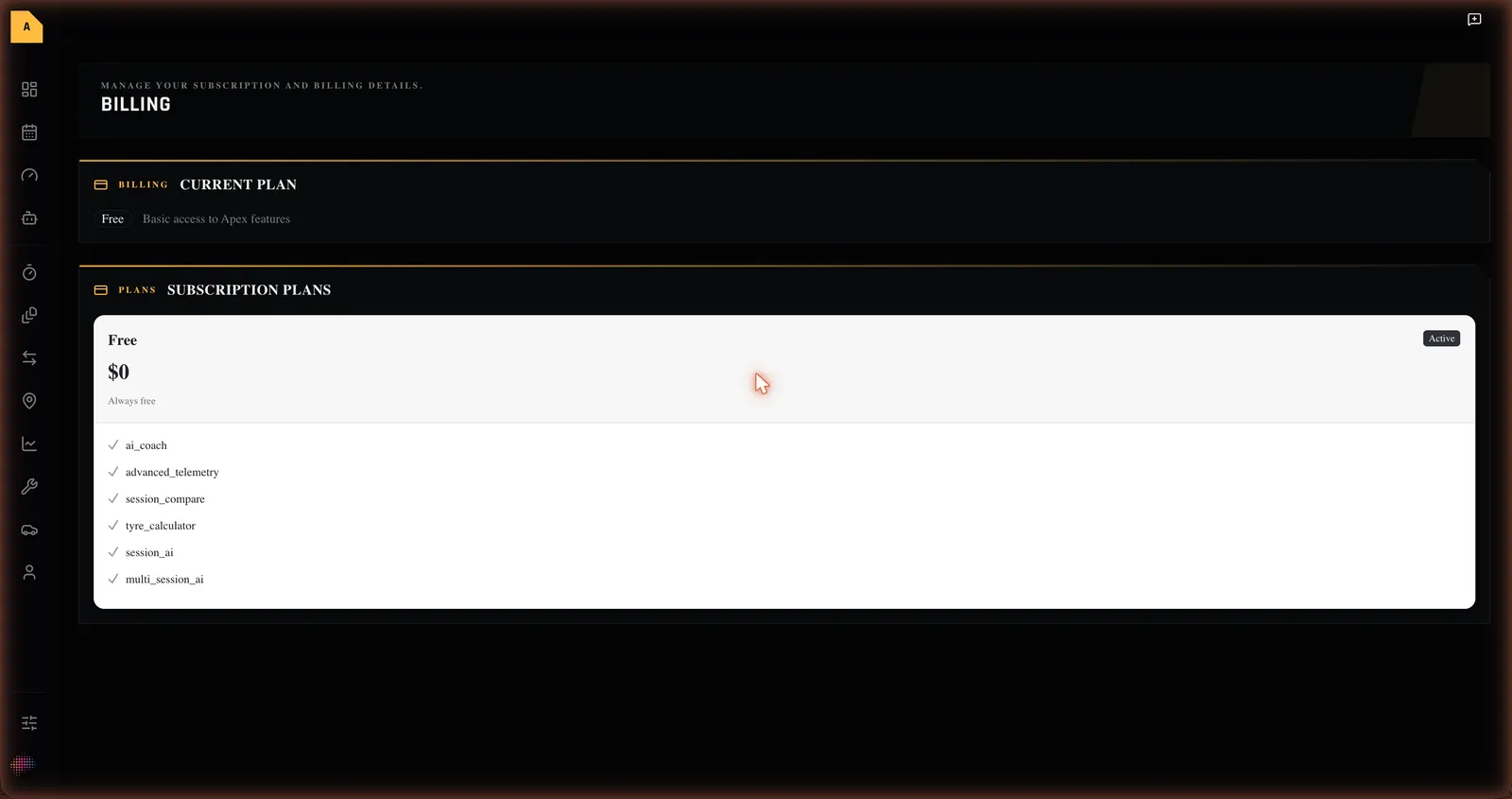
The Billing page (reached from the user menu) shows your current plan and lets you manage your subscription. The plans, prices and what each includes are shown on the Pricing page (header: Subscription Plans).
Note on currency. The subscription plans are presented through the billing provider and are shown in USD on the pricing screen. The plan names, prices and included features come from the billing provider, so check the live Pricing page for the current details. Some features — such as the AI Coach — require a Pro plan.
Where to next
- Change your units, theme and start page
- Unfamiliar word? See the Glossary. Stuck? See Troubleshooting & FAQ.