On this page
Events — race meetings, test days and event analysis
An event is a meeting or test day at a track that groups several sessions together — for example a club race day with practice, qualifying and a final. Events let you see a whole day's performance in one place, apply a kart configuration across all its sessions, get AI analysis of the meeting, and (via Purple Sector) find the exact corners where you're losing the most time.
This chapter uses our demo driver, Jordan Miles (EKS Eagle chassis, home track Go Kart Club of Victoria).
What this is for
- Group your sessions into meetings by track and day.
- Set the kart configuration for the whole event (overriding the track default where needed).
- Ask the AI about your performance across the event's sessions.
- Find your worst corners across the event with Purple Sector.
How to get here
In the sidebar, select Events. The page header reads Track Events / Practice, Qualifying, Heats, Finals and Endurance. Purple Sector has its own sidebar item: Purple Sector.
The Events list
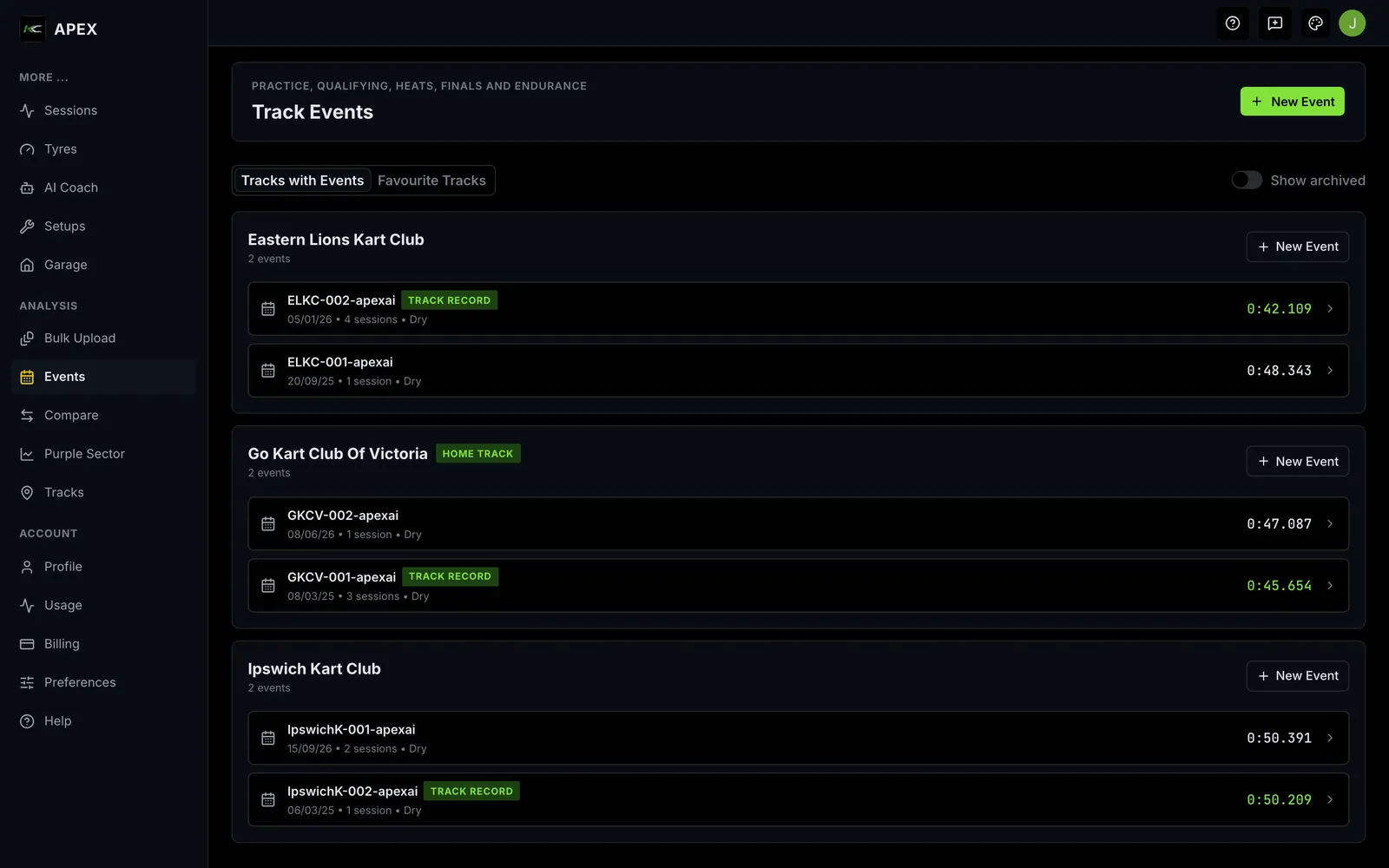
Events are grouped by track. A filter toggle switches between Tracks with Events and Favourite Tracks. Each track card lists its events with the event name, date, best lap and a weather badge; a trophy marks a track record.
- New Event — create an event (pre-filled with your home track where possible).
- Select an event to open its detail page.
- Empty states: with no events, "No events yet" and a Show favourite tracks button; with no favourites, "No favourite tracks yet" explaining you can tap the heart on any track to add it, plus a Browse tracks button.
Creating an event
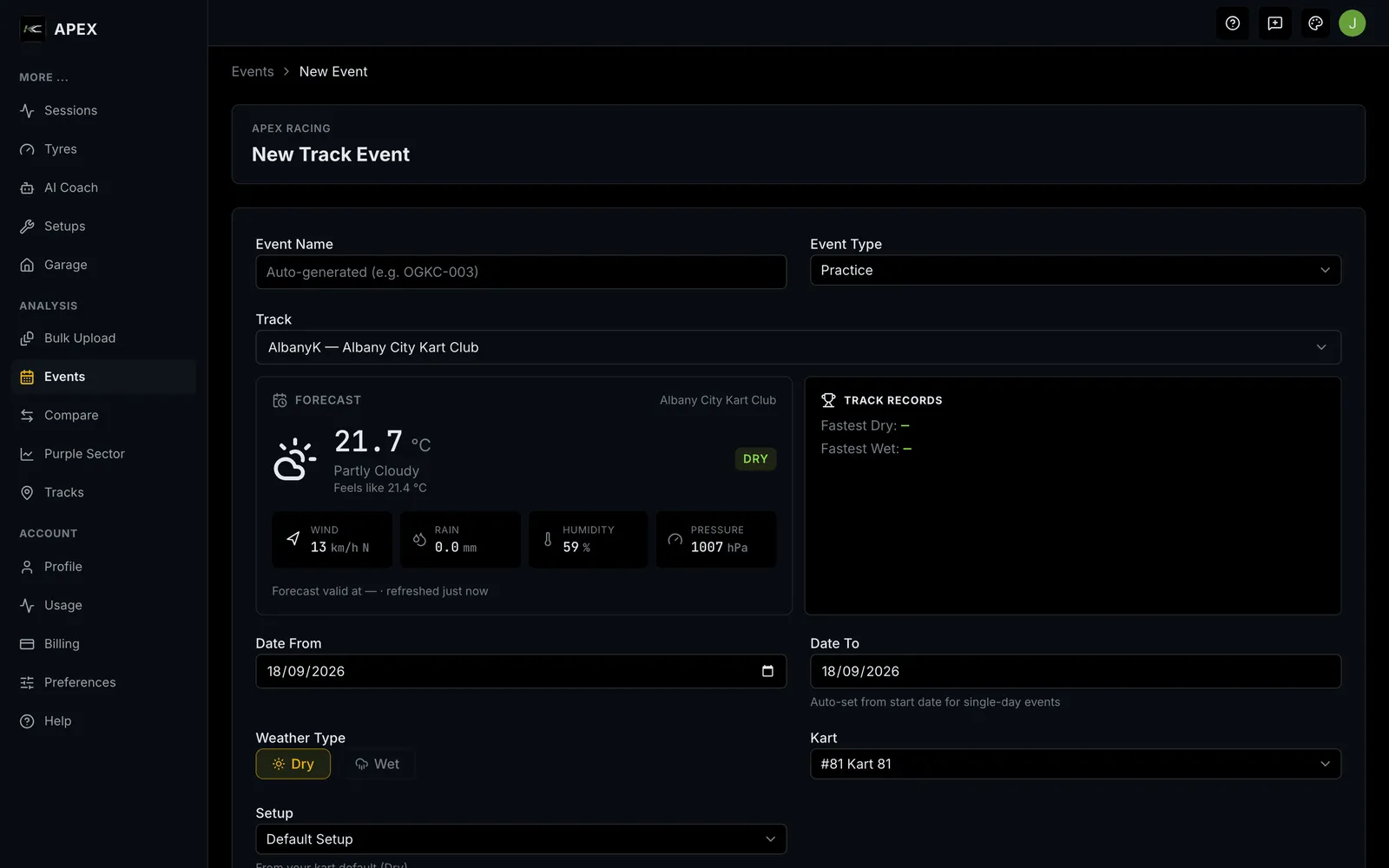
The new-event form (breadcrumb Events › New Event) has these fields:
| Field | What it is | Values / default |
|---|---|---|
| Event Name | An optional label. | Free text; auto-generated if left blank |
| Event Type | The kind of meeting. | Practice, Qualifying, Heat, Pre-Final, Final, Endurance (default Practice) |
| Track | Where it's held. | Any track; defaults to your home/favourite/most-recent track |
| Date From | Start date. | Defaults to today |
| Date To | End date. | Matches Date From unless the type is Endurance |
| Weather Type | Conditions for the event. | Dry or Wet (auto-set from the forecast where available) |
| Kart | The kart used. | Optional; defaults to your primary kart |
| Setup | The kart configuration. | Optional; auto-resolved from your track/kart defaults if left blank |
The form also shows a read-only weather forecast and Track Records for the chosen track. Select Create Event to save; Apex tells you where the setup came from (for example, your track default).
The event detail page
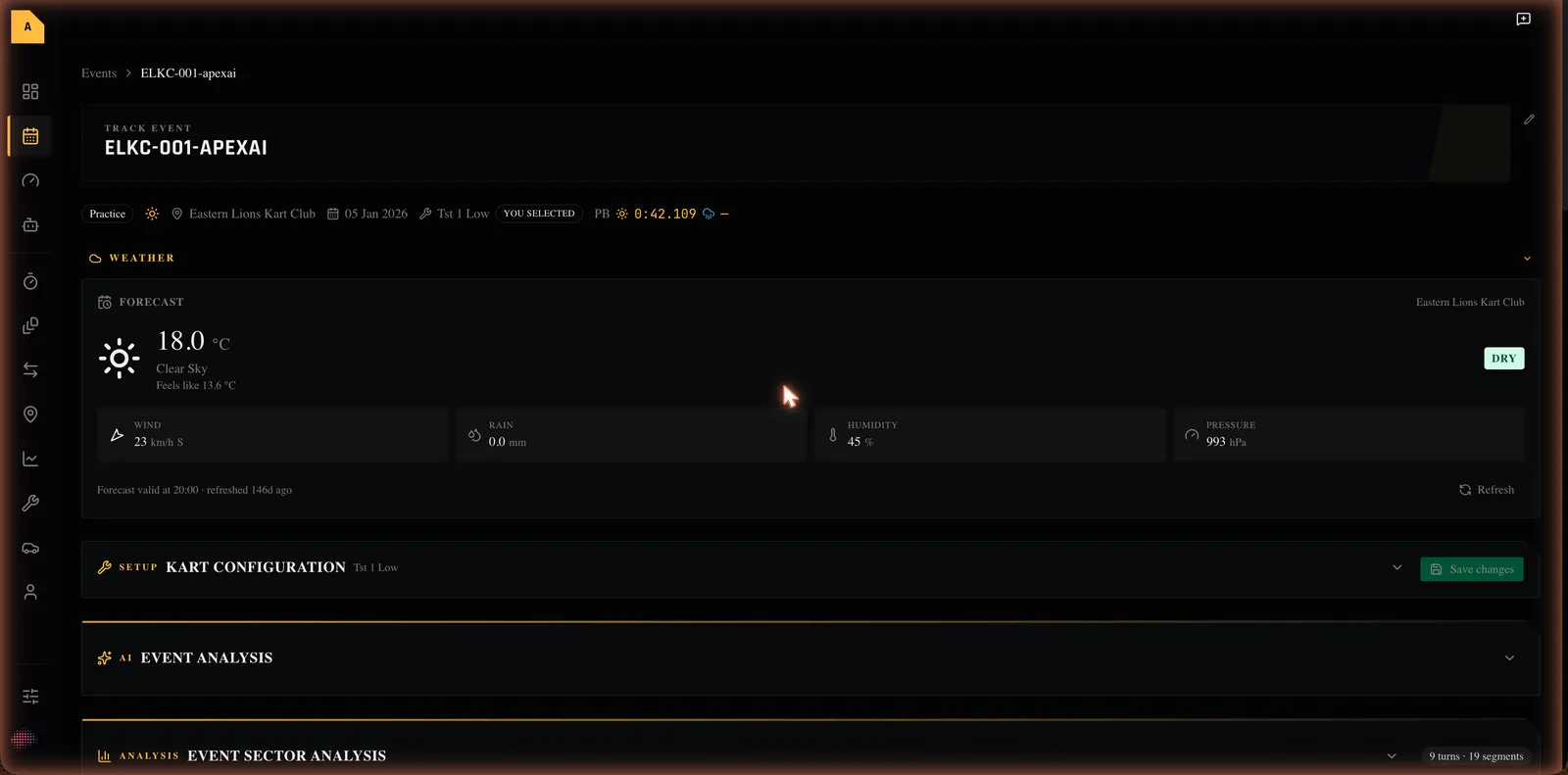
The event page shows the event name (editable in place, along with its type) and a row of details: type, weather, track, date range, kart, setup (with a small pill showing whether the setup was your choice or auto-resolved), and your personal-best dry/wet times.
Sections on the page:
- Weather — the forecast for the event.
- Kart Configuration (Full) — the event-level setup override surface. Each section shows how many fields you've overridden, with Reset to Baseline controls. (The full field list is in the Setups chapter.)
- Event Analysis — ask the AI about the whole event (see below).
- Event Sector Analysis — appears once the event has at least two sessions; compares sectors across sessions with three tabs: Lap Summary, Segment Table and Time Gains/Losses.
- Sessions — every session in the event, newest first; + Add Session opens the telemetry importer. Empty state: "No sessions yet. Add your first session to start tracking laps."
- Danger Zone — Delete the event (confirms first; removes the event and its sessions).
Event analysis (AI)
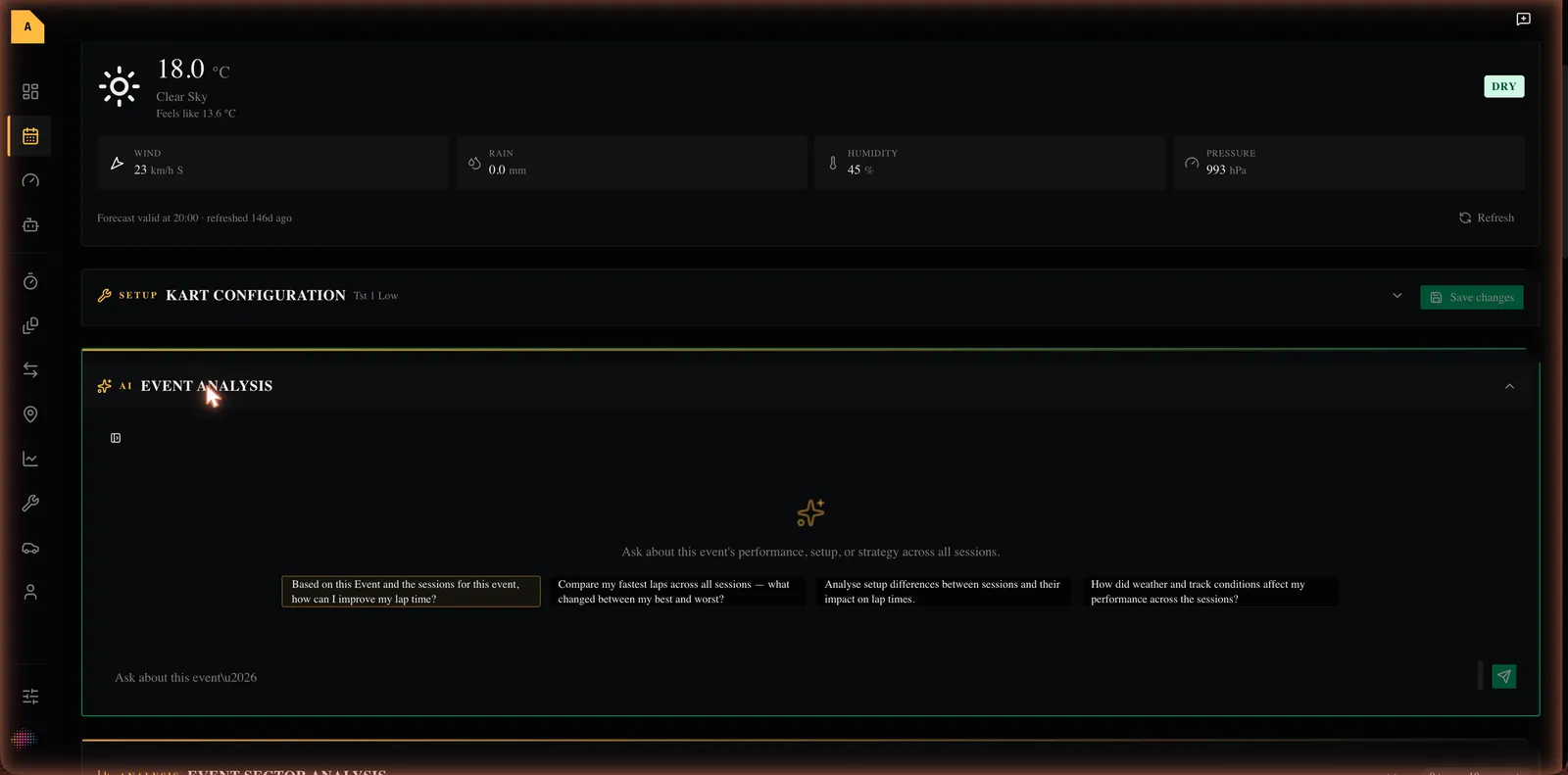
The Event Analysis card lets you ask the AI about your performance across all of the event's sessions. Type a question in "Ask about this event…", or pick one of the suggested prompts such as asking how to improve your lap time, comparing your fastest laps across sessions, looking at setup differences, or how weather affected your performance. The answer streams in as the AI writes it, and your conversations can be kept for later.
Purple Sector — your worst corners
Purple Sector (header: Purple Sector / "Zoom in on the corners where you're losing the most time.") analyses an event corner by corner across all its sessions to show where you're slowest.
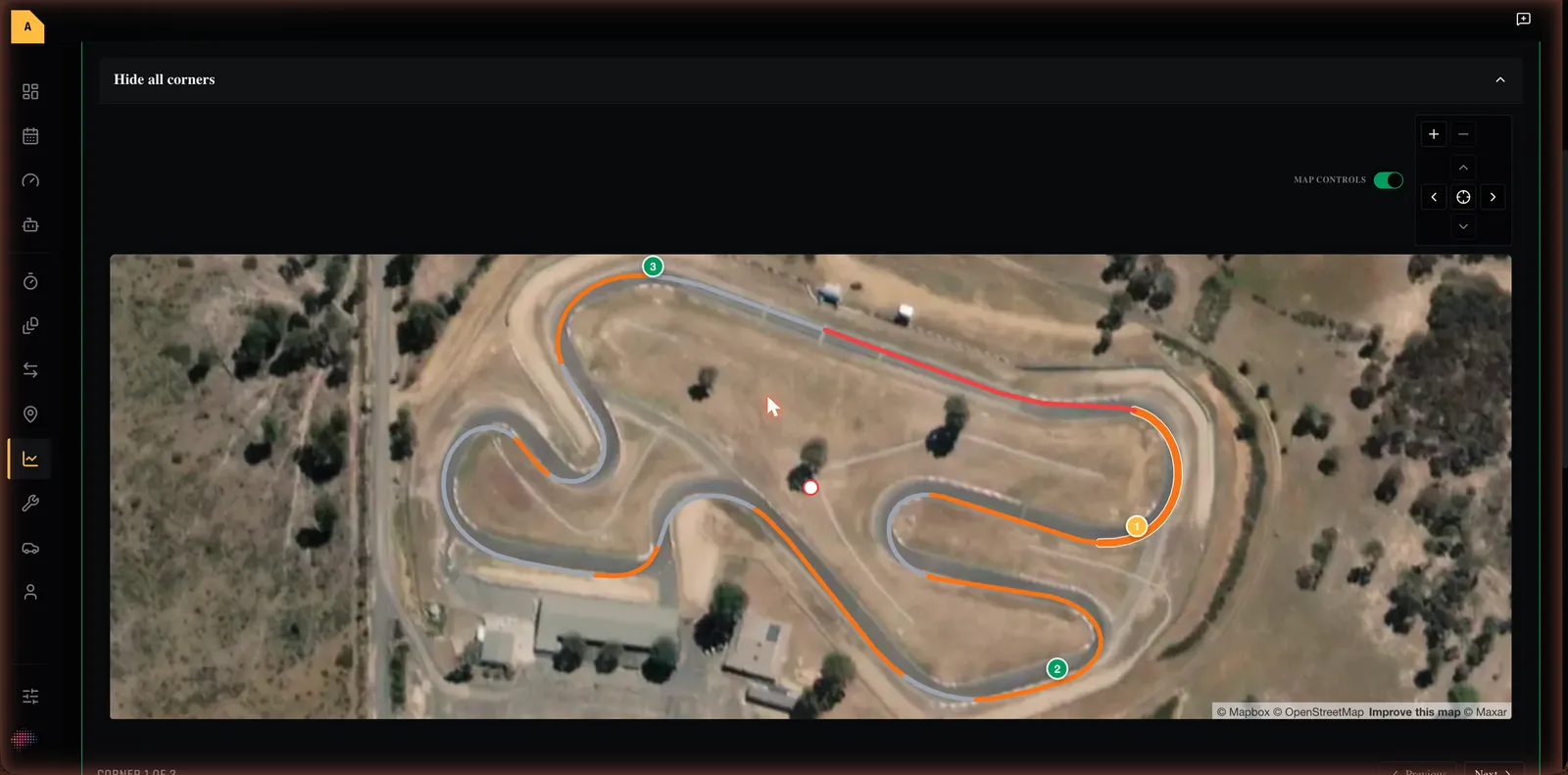
- In the sidebar, select Purple Sector.
- Choose an event from the Track event picker (events need more than two sessions to appear).
- Review the analysis.
What you'll see:
- The Event Sector Analysis panel (the same three tabs as on the event page).
- A Sector Corner Map highlighting your top problem corners, with a navigator to step through them ("Showing corner X of Y") and a toggle for the map controls.
- A commentary card per corner with the time lost, entry/exit/min/max speeds, and — where there's enough variation in your laps to be useful — a plain-language why and how to improve. Corners outside your top three are marked "Not in top 3 — view-only".
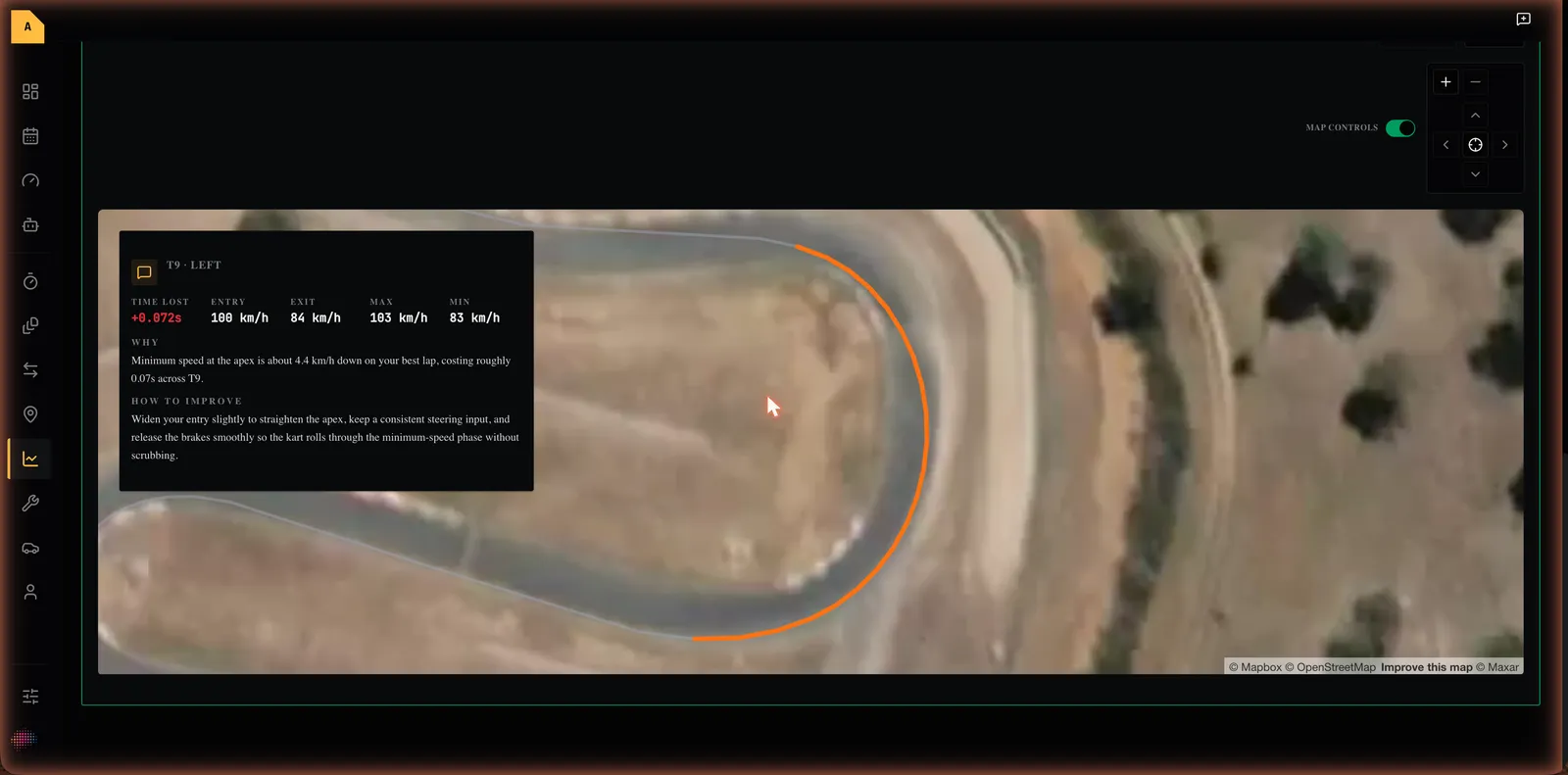
If you haven't selected an event yet, you'll see "Select an event above to see its worst corners." Events with too few sessions simply won't appear in the picker.
Empty, loading and error states
- No events: "No events yet" (with the favourite-tracks prompt).
- No sessions in an event: "No sessions yet. Add your first session to start tracking laps."
- Sector analysis with too few sessions: "At least 2 sessions are needed for cross-session sector analysis."
- Purple Sector with nothing selected: "Select an event above to see its worst corners."
Where to next
- Create an event
- Analyse an event with the AI
- Find your worst corners with Purple Sector
- Unfamiliar word? See the Glossary. Stuck? See Troubleshooting & FAQ.