On this page
Tyres — the pressure calculator
Getting tyre pressures right is one of the quickest ways to find lap time in a kart. Too low and the tyre rolls and overheats; too high and it never switches on. Apex's Tyre Calculator takes your tyre, the weather and the kind of session you're running, and works out a target pressure for each corner of the kart — then lets you save those choices so you don't have to start from scratch every weekend.
This chapter uses our demo driver, Jordan Miles (EKS Eagle chassis, home track Go Kart Club of Victoria), so every example is consistent.
What this is for
Use the Tyre Calculator to:
- Get a recommended cold pressure for each tyre, plus the hot pressure you're aiming for.
- Allow for track temperature, grip, weather and how hard you drive.
- Optionally run a more detailed 6-step adjustment that factors in your wheels, race distance and the state of the track surface.
- Save a set of choices as a named tyre setup and reload it later.
You do not need any telemetry, kart or session data to use the calculator — it works on its own.
How to get here
In the sidebar, select Tyres. (On a phone, Tyres is in the bottom navigation bar.)
The page header reads Tyre Calculator with the subtitle Calculate Optimal Tyre Pressure.
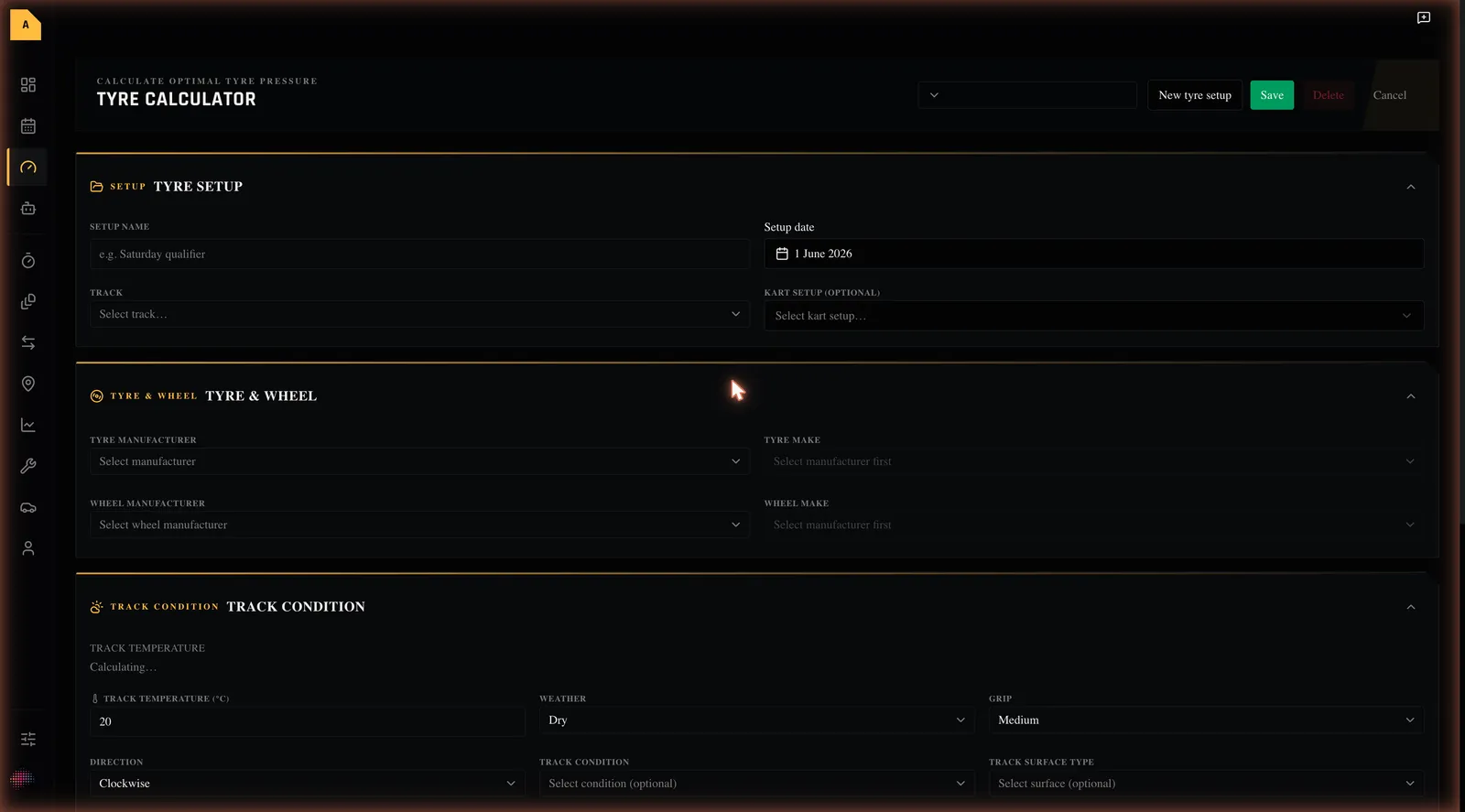
The screen at a glance
The page has three parts:
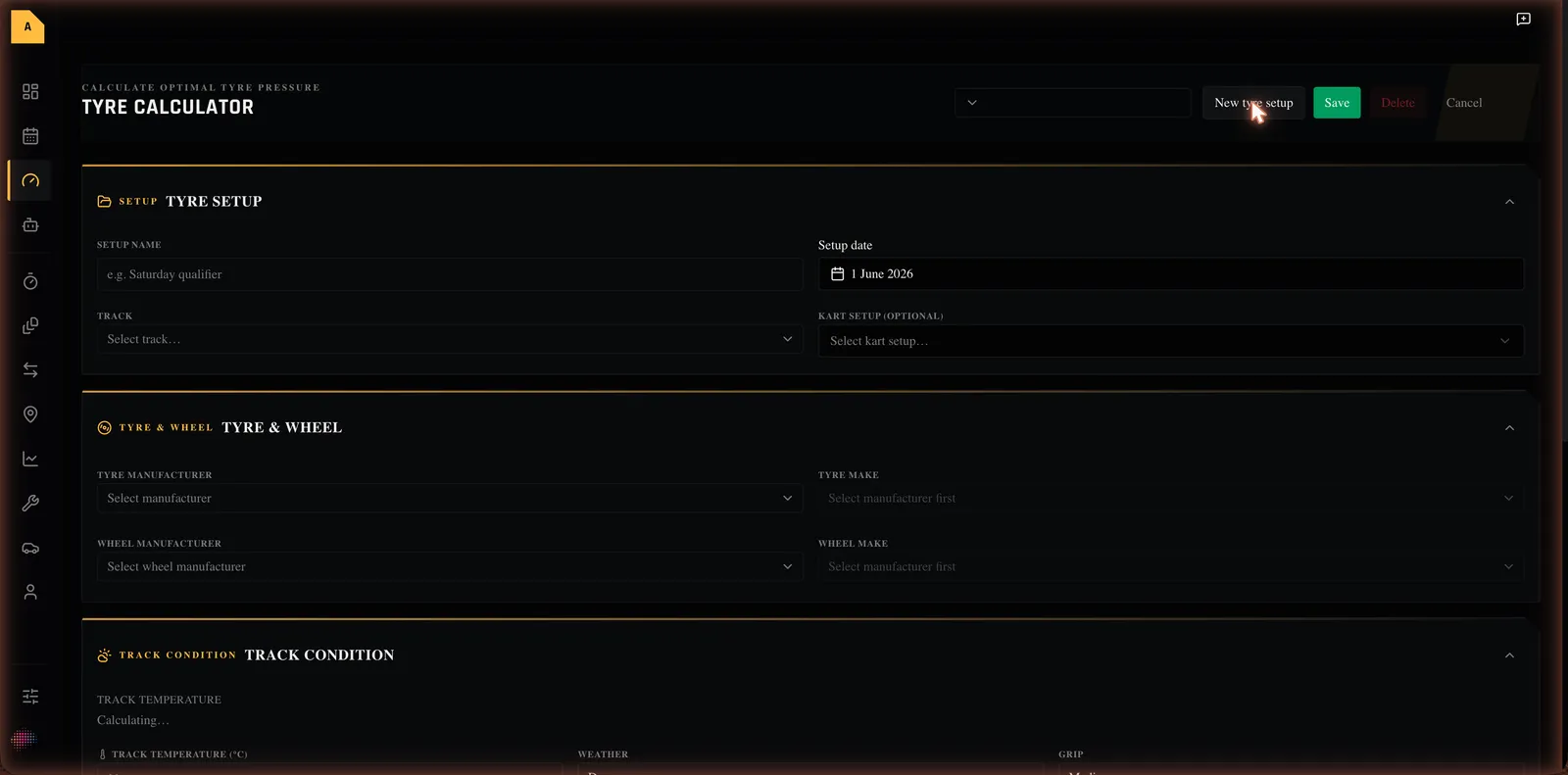
- The header — a Select tyre setup… box for loading a saved setup, and four buttons: New tyre setup, Save, Delete, Cancel.
- Four input cards (each can be collapsed by tapping its heading):
- Tyre Setup — name, date, track and an optional kart setup.
- Tyre & Wheel — which tyre and wheel you're running.
- Track Condition — temperature, weather, grip and direction.
- Session — class, session type, laps and driving style.
- The action row — a Clear button, a 6-Step toggle, and the Calculate Pressure button. Your results appear below it once you calculate.
Every element
Tyre Setup card
This card names and dates the setup and ties it to a track. It also lets you optionally load a saved kart setup to pre-fill your tyre and wheel choice.

| Field | What it means | Values / range | Default | Required? |
|---|---|---|---|---|
| Setup name | A label for this set of choices (e.g. Saturday qualifier). | Free text | Empty | Needed to save |
| Setup date | The date these pressures are for. | Today up to 7 days ahead | Today's date | Yes |
| Track | The circuit this setup is for. Also drives the weather forecast and the estimated track temperature. | Any track in Apex | Empty (Select track…) | Needed to save |
| Kart setup (optional) | Load a saved kart setup to pre-fill your tyre/wheel choice. Only setups for the chosen Track appear. | Your saved kart setups | None (Select kart setup…) | Optional |
When a saved tyre setup is loaded, a Loaded badge appears next to the card heading.
Tyre & Wheel card
Tells the calculator exactly which tyre you're on. The tyre fields are required; the wheel fields are optional but improve the 6-step adjustment.
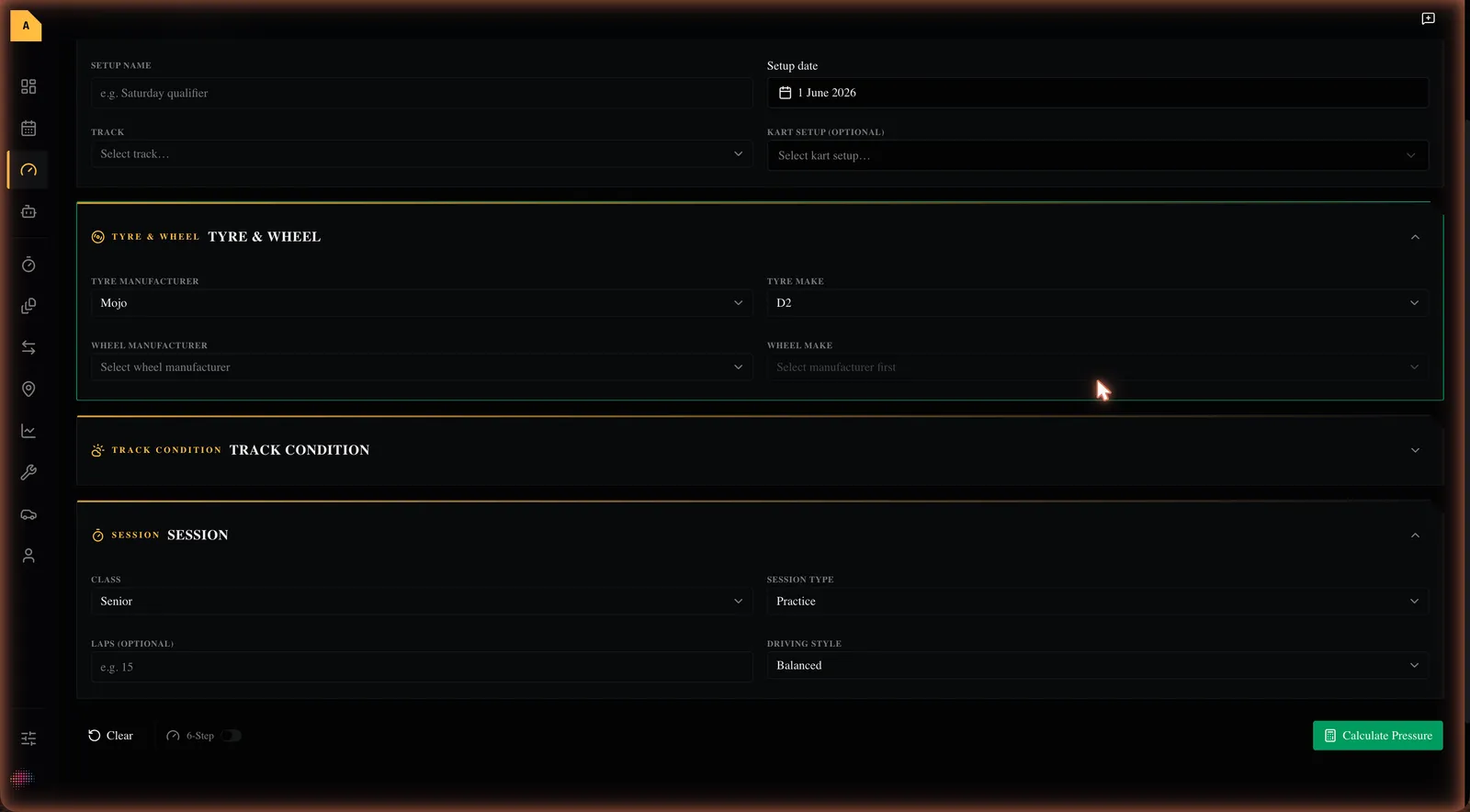
| Field | What it means | Values | Required? |
|---|---|---|---|
| Tyre Manufacturer | The tyre brand. | Dunlop, Le Cont, Maxxis, MG Tyres, Mojo, Shinko, Vega | Yes |
| Tyre Make | The compound for that brand (how soft/hard). | The compounds available for the chosen brand | Yes |
| Wheel Manufacturer | The wheel/rim brand. | AMV, Cadet, Douglas, OTK, Techno | Optional |
| Wheel Make | The specific wheel model. | The models for the chosen wheel brand | Optional |
Tyre Make stays locked until you pick a Tyre Manufacturer (it shows Select manufacturer first). The same applies to Wheel Make — pick a Wheel Manufacturer first.
Track Condition card
Describes the conditions on the day. The top of the card may show an estimated track temperature and a weather forecast for the selected track and date.
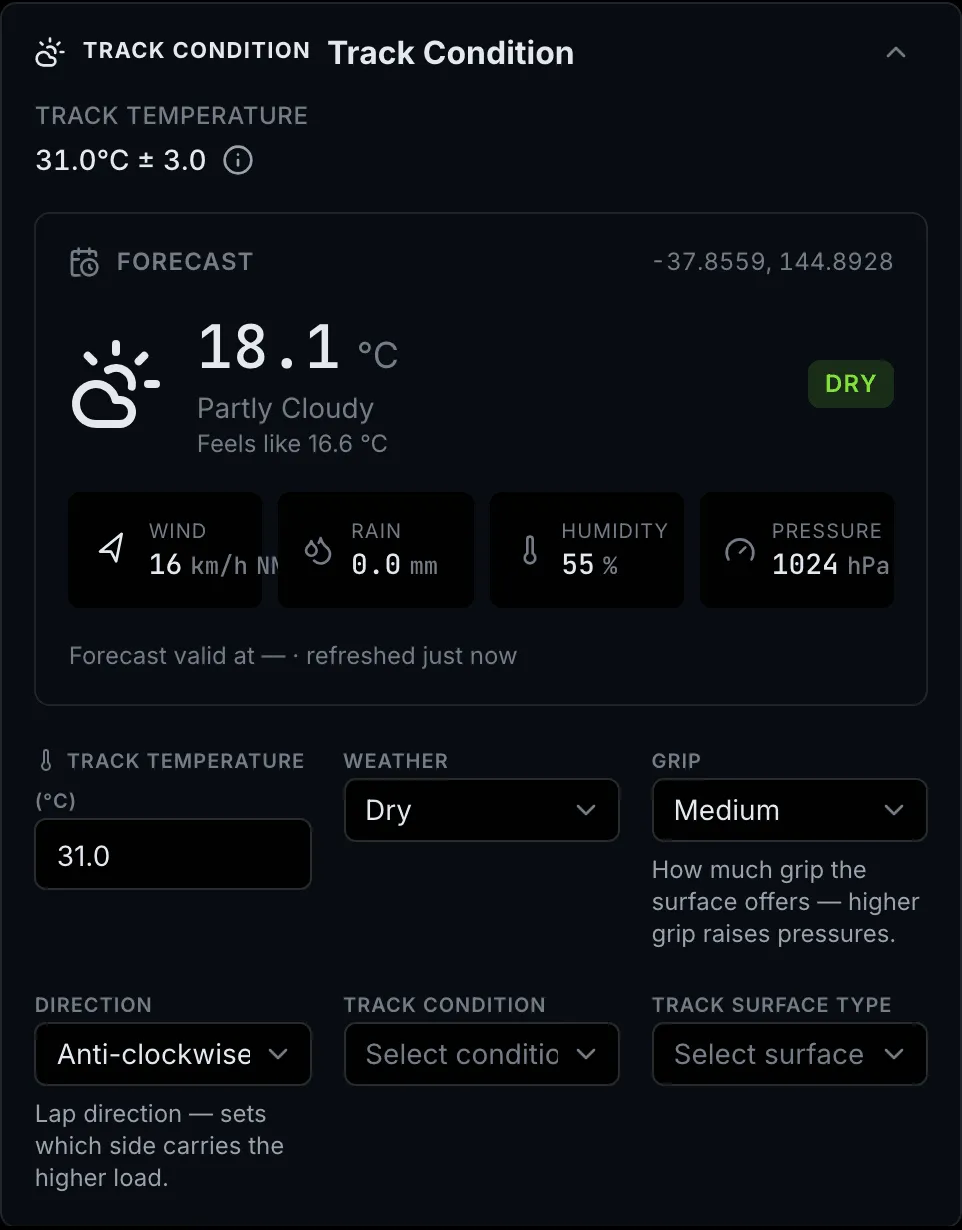
| Field | What it means | Values / range | Default | Required? |
|---|---|---|---|---|
| Track Temperature (°C) | How hot the track surface is. Strongly affects pressure. | −10 to 50 °C, in 0.5° steps | 20 | Optional (auto-filled if a forecast is available) |
| Weather | The conditions. | Dry, Damp, Wet, Very Wet | Dry | Yes |
| Grip | How much grip the surface offers. | Green, Low, Medium, High, Very High | Medium | Yes |
| Direction | Which way the circuit runs. | Clockwise, Anti-clockwise | Clockwise (matches the track if known) | Yes |
| Track Condition | Optional extra for the 6-step adjustment. | Slippery, Visible Race Line, Large Race Event | None | Optional |
| Track Surface Type | Optional extra for the 6-step adjustment. | Brand New, Coarse, Dusty, Bumpy, Smooth | None | Optional |
Session card
Tells the calculator what kind of track time you're doing and how hard you drive.
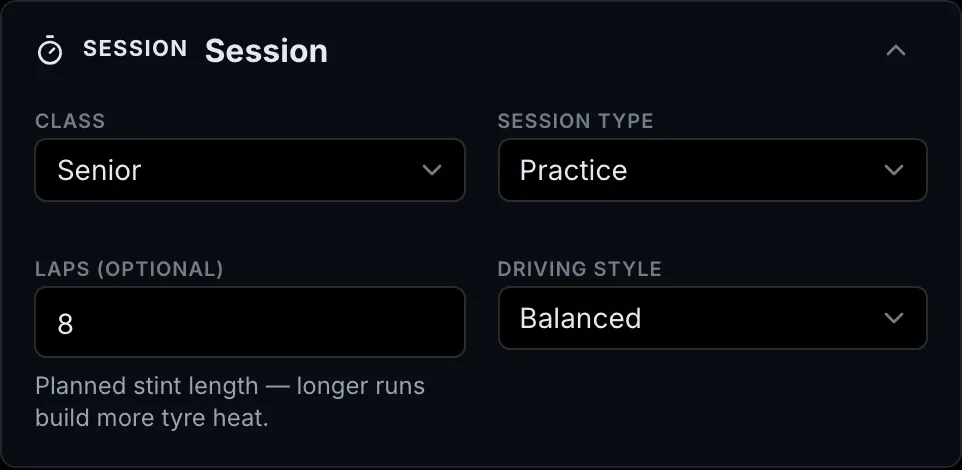
| Field | What it means | Values / range | Default | Required? |
|---|---|---|---|---|
| Class | Your racing category. | Cadet, Junior, Senior, Masters, Shifter, Rental | Senior (matches your kart if known) | Yes |
| Session Type | The kind of session. | Practice, Qualifying, Heat, Prefinal, Final, Endurance | Practice | Yes |
| Laps (optional) | How many laps you'll run. | 1 to 99 | Empty | Optional |
| Driving Style | How aggressively you drive. | Smooth, Balanced, Aggressive | Balanced | Yes |
The action row
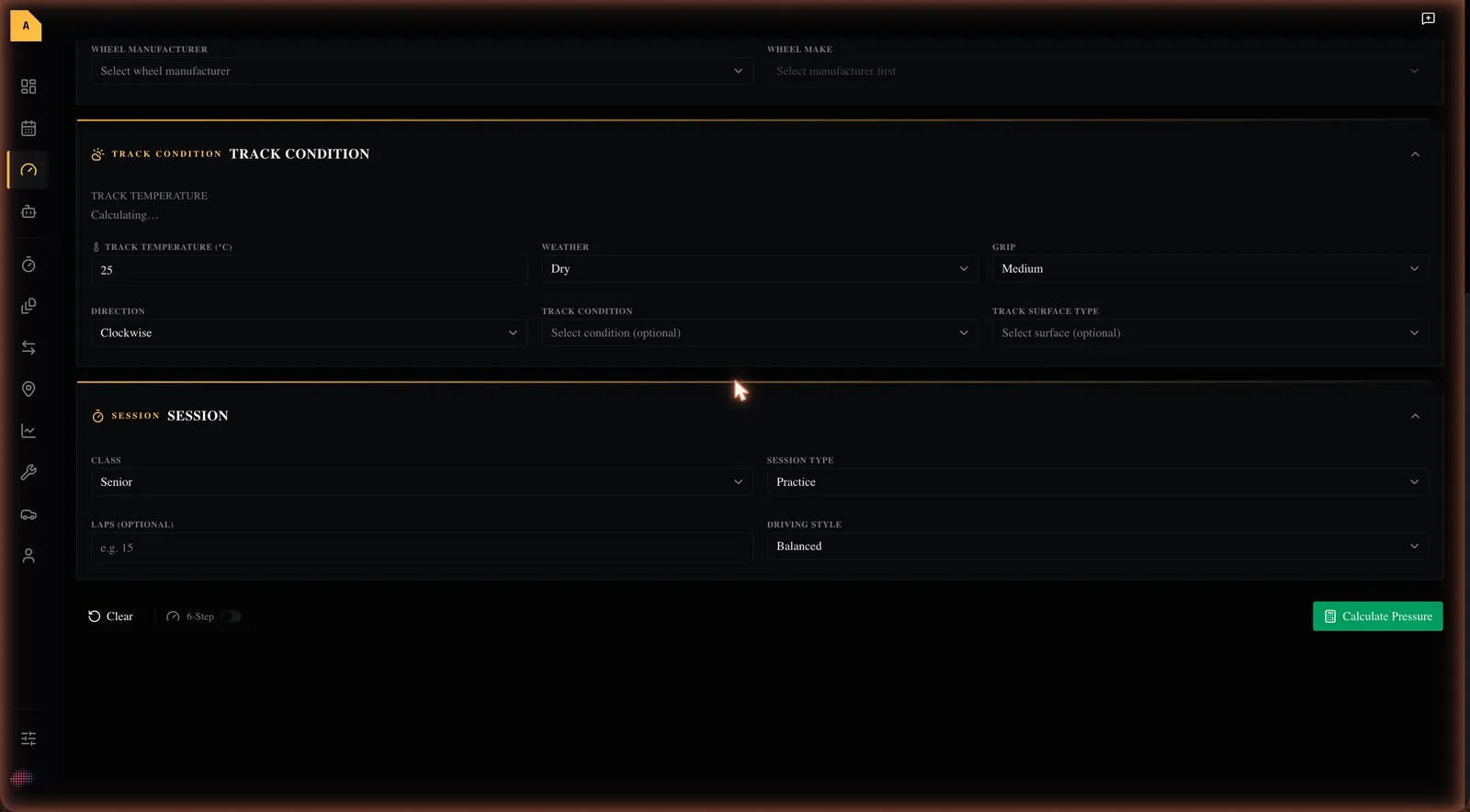
- Clear — resets all the calculator fields back to their defaults and clears any result.
- 6-Step (toggle) — switches on the more detailed 6-step adjustment (see Use the 6-step adjustment below). If you already have a result on screen, flicking this re-calculates straight away.
- Calculate Pressure — runs the calculation. It stays greyed out until you've chosen a Tyre Manufacturer and a Tyre Make; hovering it then shows "Select tyre manufacturer and tyre make to enable calculation." While it's working the button reads Calculating….
The results — Pressure Readout
After you calculate, a Pressure Readout appears below the action row.
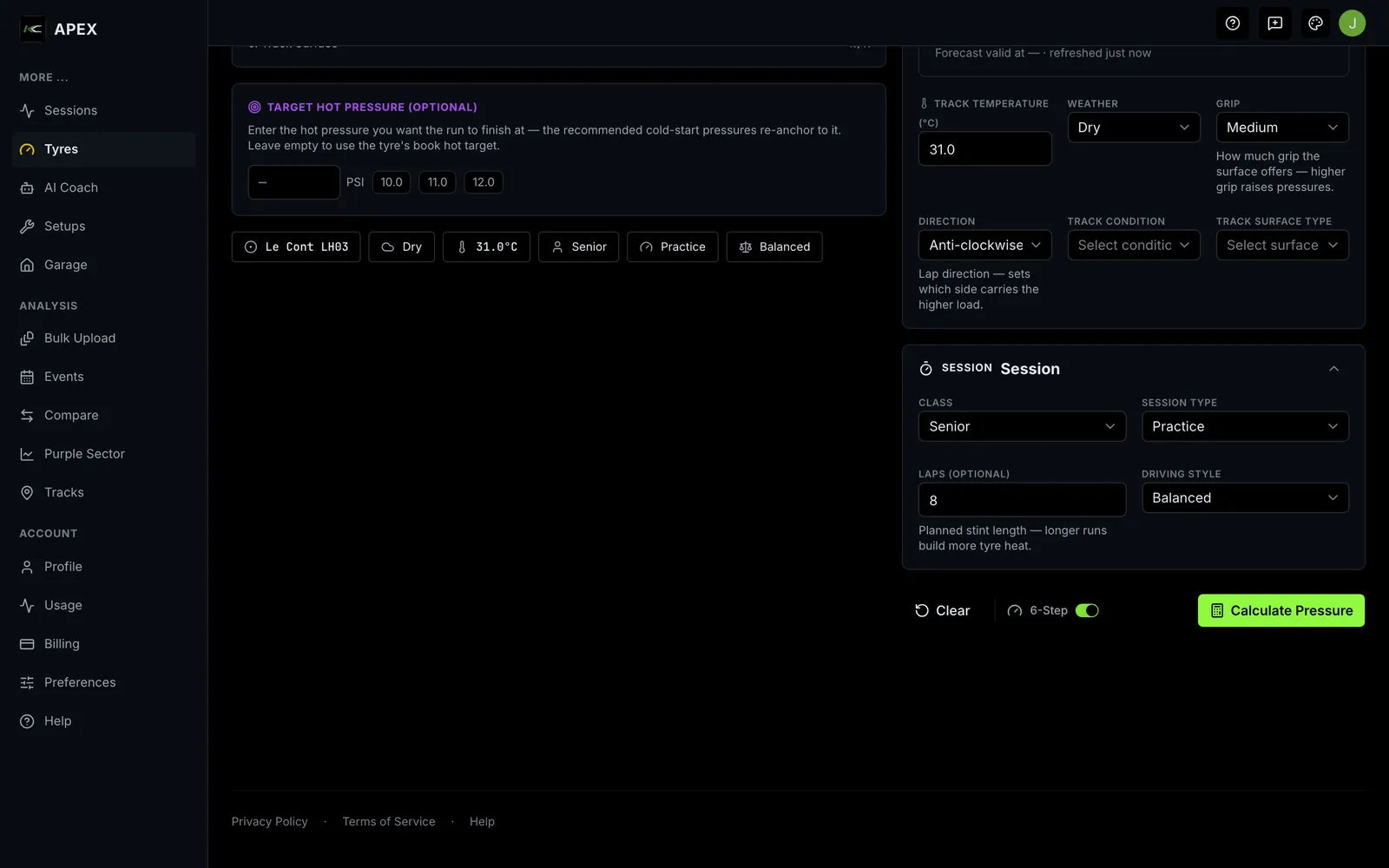
- Per-corner grid (2×2) — Outside Front, Inside Front, Outside Rear, Inside Rear. Each corner shows a nominal pressure in large gold text (in PSI) with a low – high range beneath it. The nominal figure is the cold pressure to set.
- Target Hot Pressure — the range you're aiming for once the tyres are hot. This is naturally higher than the cold figures because pressure rises with heat.
- Base PSI / Temp Adj. / Modifier Total — a short breakdown of how the numbers were built up: the tyre's base pressure, the change for track temperature, and the combined change for your other choices.
Empty, loading and error states
-
Nothing entered yet: Calculate Pressure is greyed out and no readout is shown until you pick a tyre manufacturer and make.
-
Calculating: the button reads Calculating… with a spinner.
-
Calculation failed: a red message appears — "Calculation failed. Please try again." Wait a moment and press Calculate Pressure again.
-
Track temperature out of range: if you enter a temperature outside −10 to 50 °C you'll see "Track temperature must be between -10 and 50°C". Correct it and calculate again.
-
No saved setups: the Select tyre setup… box shows "No tyre setups yet." until you save one.
Walkthrough: work out your tyre pressures
Jordan is at Go Kart Club of Victoria for a Saturday practice day on Mojo tyres, medium compound, with a track temperature around 25 °C.
- In the sidebar, select Tyres.
- In the Tyre & Wheel card, choose Mojo from the Tyre Manufacturer list.
- What you'll see: the Tyre Make list unlocks.
- Choose a medium compound from the Tyre Make list.
- (Optional) Choose your wheel under Wheel Manufacturer and Wheel Make.
- In the Track Condition card, set Track Temperature (°C) to 25.
- Set Weather to Dry.
- Set Grip to Medium.
- Check Direction is Clockwise (Apex sets it to match the track when it knows the layout).
- In the Session card, set Class to Senior and Session Type to Practice.
- Select Calculate Pressure.
- What you'll see: the Pressure Readout appears with a cold pressure for each corner and a Target Hot Pressure range.
Set each tyre to its corner's nominal cold figure, then check they climb to roughly the Target Hot Pressure once you're up to speed.
Walkthrough: use the 6-step adjustment
The 6-step adjustment refines the numbers using your wheels, race distance and the track's condition and surface.
- Fill in the calculator as above (at minimum a Tyre Manufacturer and Tyre Make).
- (Recommended) Add your Wheel Manufacturer and Wheel Make, and the Laps you'll run.
- (Optional) In the Track Condition card, set Track Condition and Track Surface Type.
- Turn on the 6-Step toggle in the action row.
- Select Calculate Pressure (or, if you already have a result, the page recalculates as you flick
the toggle).
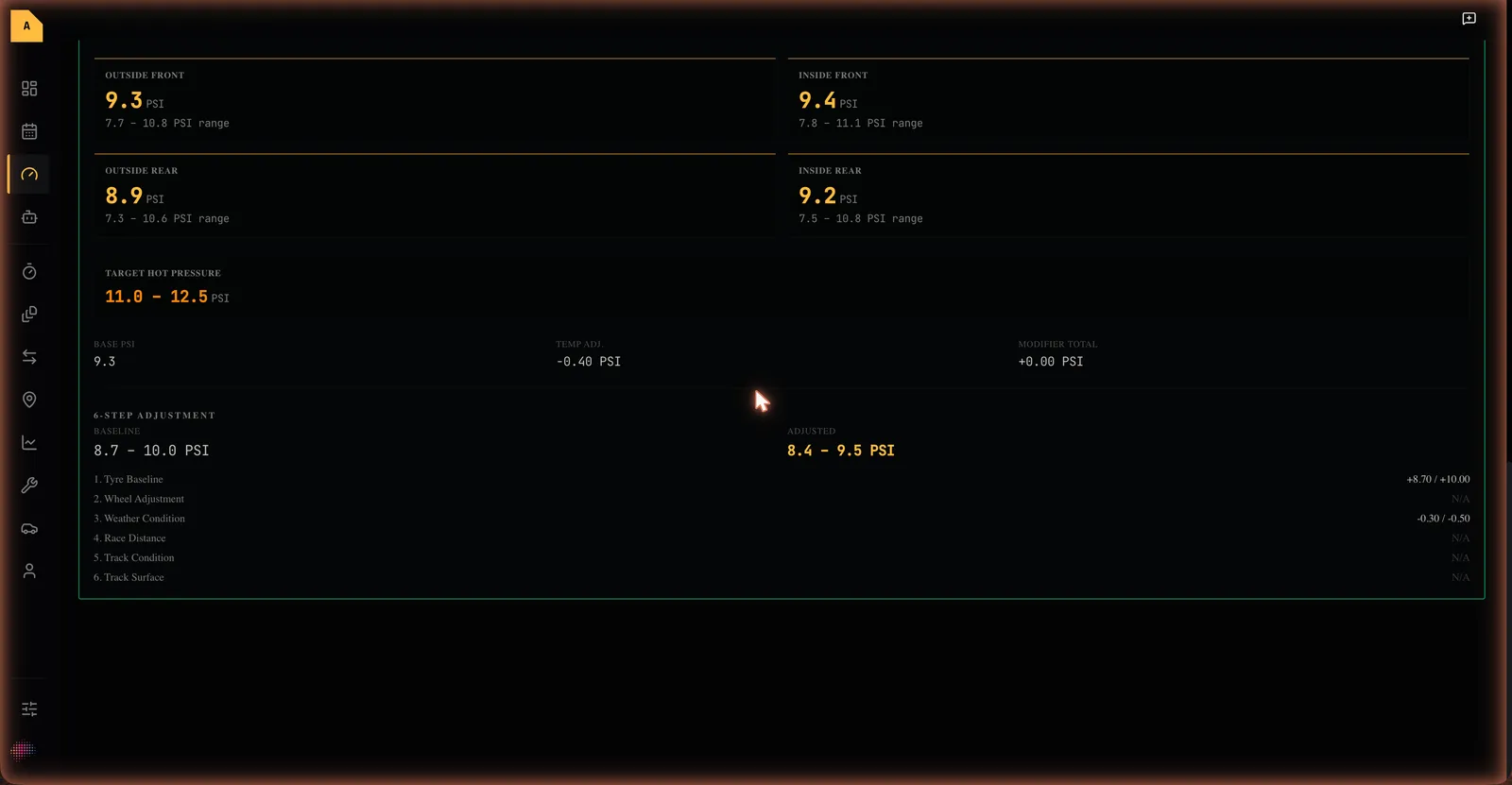
- What you'll see: a 6-Step Adjustment section is added to the readout, showing the Baseline range, the Adjusted range (in gold), and each of the six steps with the change it applied (or N/A if it didn't apply).
Walkthrough: save and reuse a tyre setup
Saving means you can reload the same starting point next time instead of re-entering everything.
- Fill in the calculator with your tyre, conditions and session choices.
- In the Tyre Setup card, type a Setup name — for Jordan, Saturday qualifier.
- Check the Setup date (defaults to today; you can pick up to a week ahead).
- Choose your Track — Go Kart Club of Victoria.
- Select Save in the header.
- What you'll see: a confirmation, "Tyre setup saved", and the setup now appears in the Select tyre setup… box.
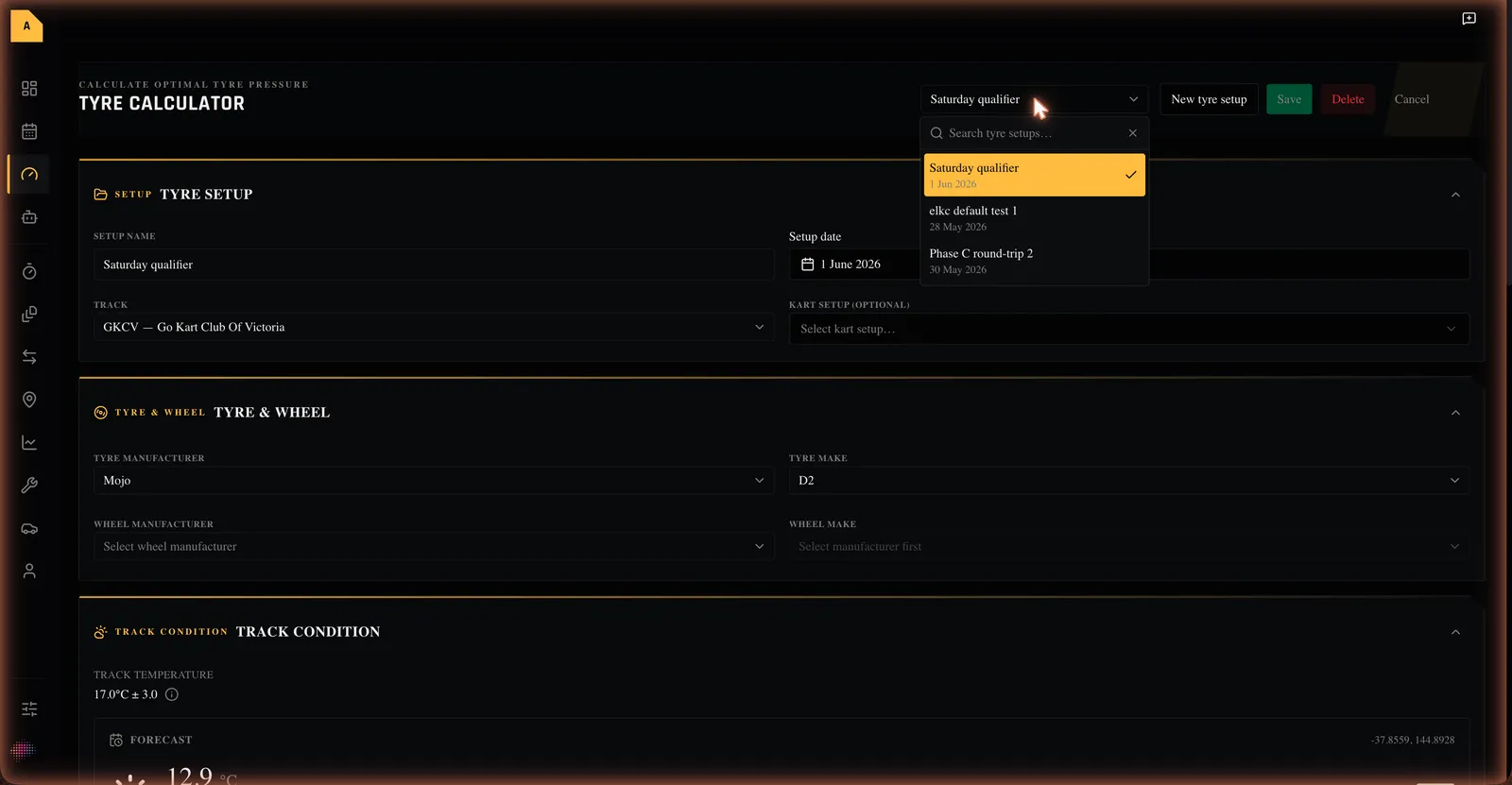
To reload it later, open Select tyre setup… and choose it — the calculator repopulates and a Loaded badge appears.
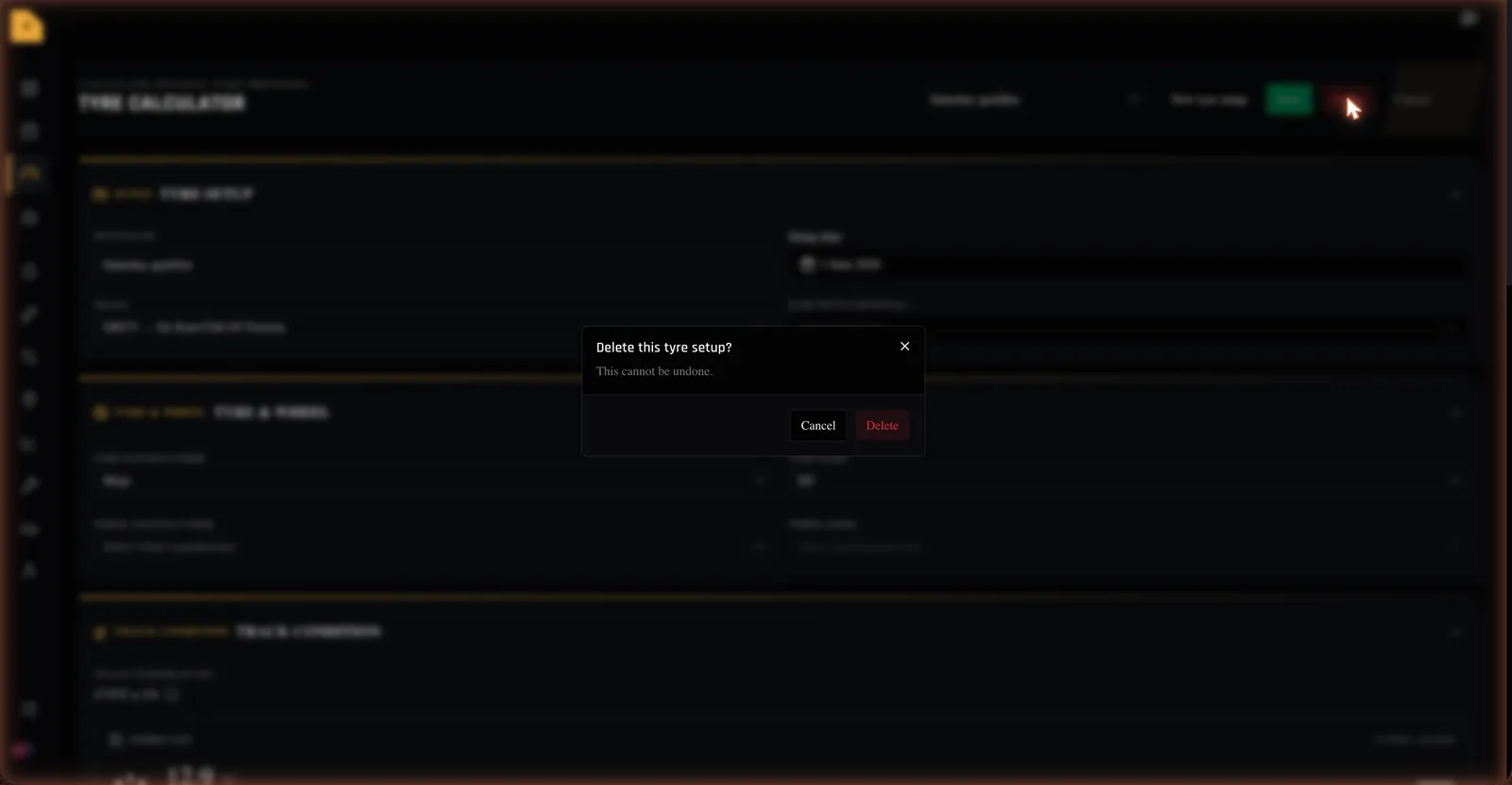
To delete it, select Delete and confirm in the dialog (Delete this tyre setup? / This cannot be undone.).
Other buttons:
- New tyre setup — clears everything to start a fresh setup.
- Cancel — undoes unsaved edits and returns to the last loaded state.
Where to next
- Trackside Tyres — the same calculator on a phone at the circuit, where it runs on entry and can work backwards from a hot target.
- Work out your tyre pressures
- Choose your tyre and wheel
- Understand your tyre pressure results
- Use the 6-step pressure adjustment
- Save and reuse a tyre setup
- Unfamiliar word? See the Glossary. Stuck? See Troubleshooting & FAQ.